
You notice it when you scan your card statement or Apple receipt. A small iCloud+ renewal lands again, and again, and again. It's not the kind of charge that usually triggers a panic, which is exactly why it sticks around.
That's what makes cancelling it a smart money move. Not dramatic. Just organised. If you're trying to cut recurring costs, learning how to cancel icloud storage plan access is the same kind of housekeeping as cancelling a streaming service you stopped watching or a premium app you forgot you had.
The trick is doing it without creating a mess with your photos, backups, or files. That's where people often hesitate. They're not worried about tapping the right menu. They're worried about what breaks after.
That Small Charge That Adds Up
A lot of subscription spending works like this. One charge is easy to ignore because it feels small. Then you realise you've got several of them, all set to renew unnoticed in the background.
iCloud+ often falls into that category. You may have upgraded because your phone asked for more storage during a backup, or because your photo library outgrew the free tier. That was probably the right call at the time. But if your storage needs changed, or you're trying to lower fixed monthly costs, it makes sense to revisit it.
That's also why this is bigger than one Apple setting. It's part of the same habit behind reviewing rent, insurance, utilities, and every other repeating cost. If you want a useful framework for that, this breakdown of a fixed expense definition helps draw the line between necessary recurring bills and the ones worth trimming.
Why this is a financial decision, not just a tech task
Cancelling a paid storage plan means you're asking a simple question: am I still getting enough value from this recurring charge?
Sometimes the answer is yes. If iCloud is actively solving a storage problem for you, keep it. If it's become a default expense you barely think about, cutting it is reasonable.
Practical rule: If a recurring charge survives only because it's on autopilot, it deserves a review.
There's also a psychological benefit. Every time you clean up one unused subscription, the next one gets easier to spot. You start noticing where money leaks out in small amounts.
What usually goes wrong
Users often don't get stuck on the cancellation menu. They get stuck because they haven't checked what's stored in iCloud first.
That matters. Photos, iCloud Drive files, and device backups can all depend on the plan you're paying for. If you lower the plan without moving important data, you can create syncing problems and backup issues that are annoying to unwind later.
So the right approach is simple. First, do a quick safety check. Then cancel on the device you have handy. Then keep an eye on what changes after the billing period ends.
Before You Cancel A Critical Safety Check
Canceling iCloud storage is a smart cost cut only if you protect the data that charge was covering first. A few minutes of prep can save you from the expensive version of frugality: paying later in lost photos, missed backups, or recovery work.
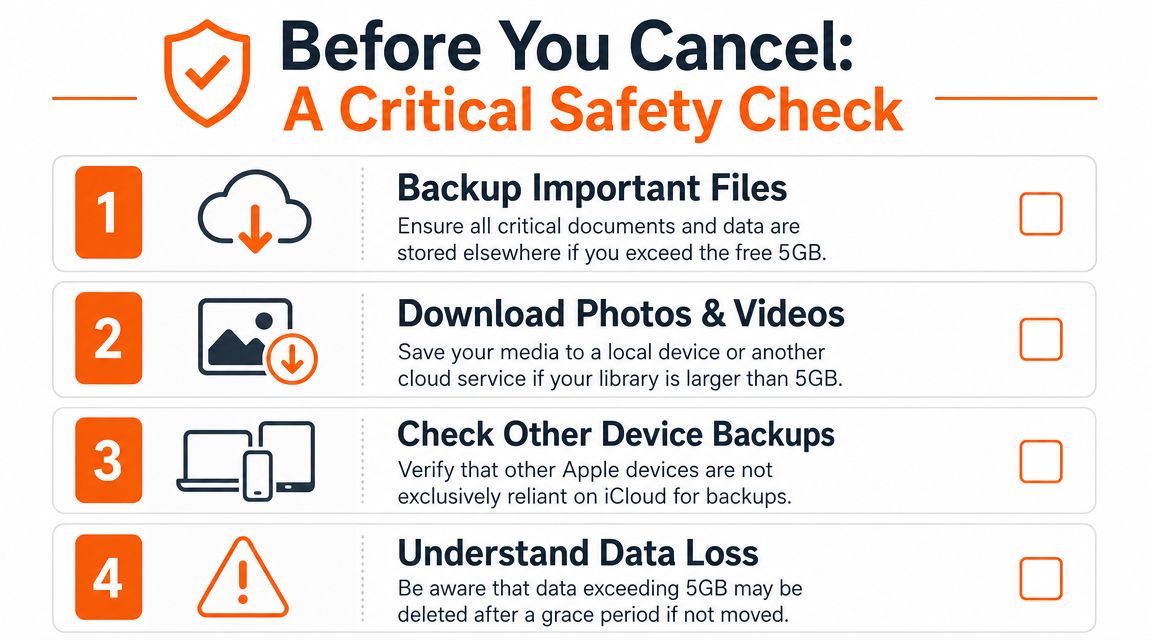
Run this checklist first
Treat this like a pre-cancellation audit, not a tech chore. You want to know what the paid plan is still doing for you before you remove it.
- Check your current storage usage. Open iCloud storage settings and identify the biggest categories. Photos, device backups, and iCloud Drive usually explain the bill.
- Save copies of important photos and videos. If your library is larger than the free plan can handle, export what you want to keep to a Mac, PC, external drive, or another cloud service.
- Review device backups. If iCloud Backup is your main fallback, create a local backup before changing the plan.
- Look for files stored only in iCloud Drive. If a document matters, make sure you can access a copy outside iCloud.
If you do not have a second copy, you do not have much margin for error.
The free-plan limit changes the math
Once you drop the paid plan, the question is simple: can your account live inside 5 GB without causing problems?
If the answer is no, Apple usually does not wipe everything the second you downgrade. The bigger issue is loss of function. New backups may stop. Syncing may stall. Recent changes across devices may not update the way you expect. That is why the smart move is to shrink first, then cancel.
Here is the short version of what to review:
| What to review | Why it matters |
|---|---|
| Photos and videos | They often use the most space and are painful to replace |
| Device backups | Backups that no longer fit can stop updating |
| iCloud Drive files | Some documents may exist only in cloud storage |
| Shared family data | Someone else on the account may still rely on the paid storage |
This is also where the money angle matters. If canceling saves a monthly charge but creates a data mess, the savings are not real. A clean downgrade keeps the win intact.
If you are already worried about missing data
If something already looks off, missing photos, old backups, files that appear on one device but not another, pause before changing the plan. These MackTechs iPhone data retrieval solutions are a useful starting point if you need to confirm what is still recoverable.
Then log the subscription removal in whatever system you use to review recurring charges. If you want a simple place to track cuts like this, a monthly bill tracker for recurring expenses makes it easier to spot the next charge worth trimming.
How to Cancel iCloud Storage on Any Device
Canceling iCloud storage is usually a five minute job. The part that trips people up is that Apple labels it as a downgrade, not a cancellation, and the menu path changes depending on the device in your hand.
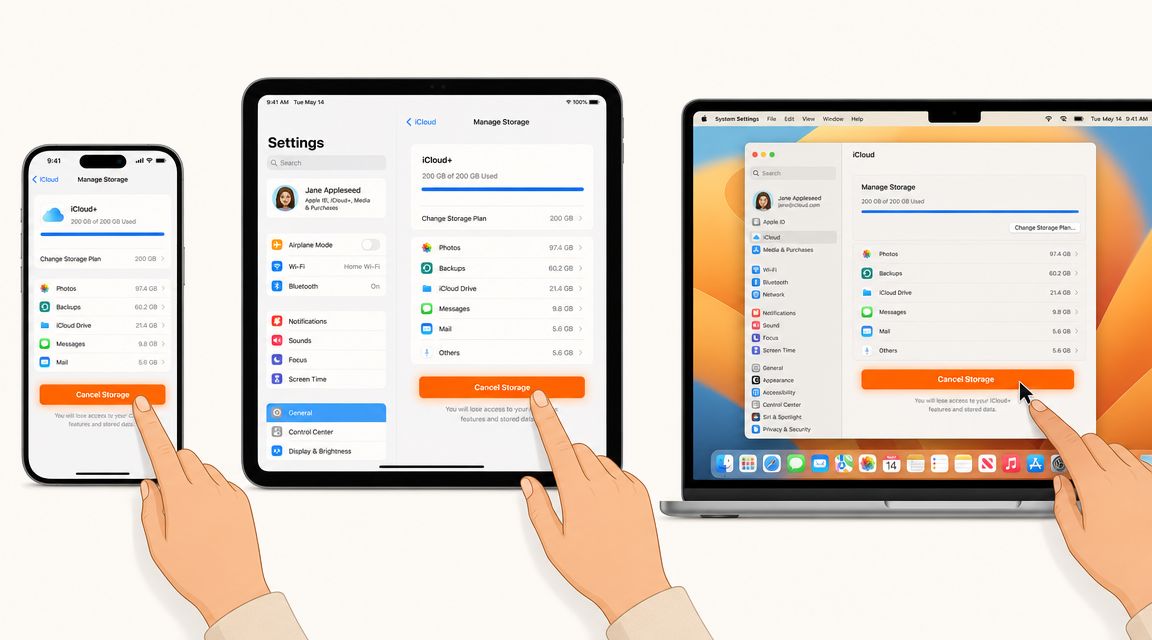
If your goal is simple, stop the recurring charge and go back to the free plan, look for Downgrade Options and choose Free 5 GB. That wording is the key on nearly every device.
On iPhone or iPad
On iPhone and iPad, the path depends on your iOS version. Some devices show iCloud storage under your Apple account settings. Newer versions may route you through Subscriptions instead.
Use whichever path appears on your screen:
- Open Settings.
- Tap your name.
- Tap Subscriptions or iCloud.
- Select iCloud+ or Manage Account Storage.
- Tap Change Storage Plan.
- Choose Downgrade Options.
- Select Free 5 GB.
- Confirm with Face ID, Touch ID, or your Apple ID password if asked.
If the menus do not match exactly, do not overthink it. Apple moves settings around often. The charge is still tied to your Apple account, so checking both Subscriptions and iCloud usually gets you there.
On a Mac
Mac users follow a similar process, with slightly different menu names based on macOS version.
- Click the Apple menu.
- Open System Settings or System Preferences.
- Click Apple Account or Apple ID.
- Select iCloud.
- Click Manage.
- Choose Change Storage Plan.
- Click Downgrade Options.
- Pick Free 5 GB and confirm.
The practical tip here is to ignore small naming differences and focus on the storage plan screen. If you can reach Manage inside iCloud settings, you are close.
On Windows
If you use a PC, open the iCloud for Windows app and work through the storage settings there, as noted earlier in Apple's support instructions.
- Open iCloud for Windows.
- Click Manage.
- Select Change Storage Plan.
- Click Downgrade Options.
- Choose Free 5 GB.
- Confirm the change.
One thing that confuses people
Apple rarely uses the word cancel on this screen. You are usually choosing a lower storage tier, which is why the button says Downgrade Options instead of Cancel Plan.
That distinction matters because many recurring Apple charges sit in nearby menus. If you are already cutting back monthly spending, it helps to review your other Apple renewals too. This guide on how to cancel an app subscription on iPhone is useful if you want to clear out the smaller charges while you are already in settings.
What Happens After You Cancel Your Plan
Canceling paid iCloud storage usually works like canceling any other monthly service. The charge stops after the current billing period ends, not the minute you tap downgrade. Until that renewal date, you typically keep the storage you already paid for.
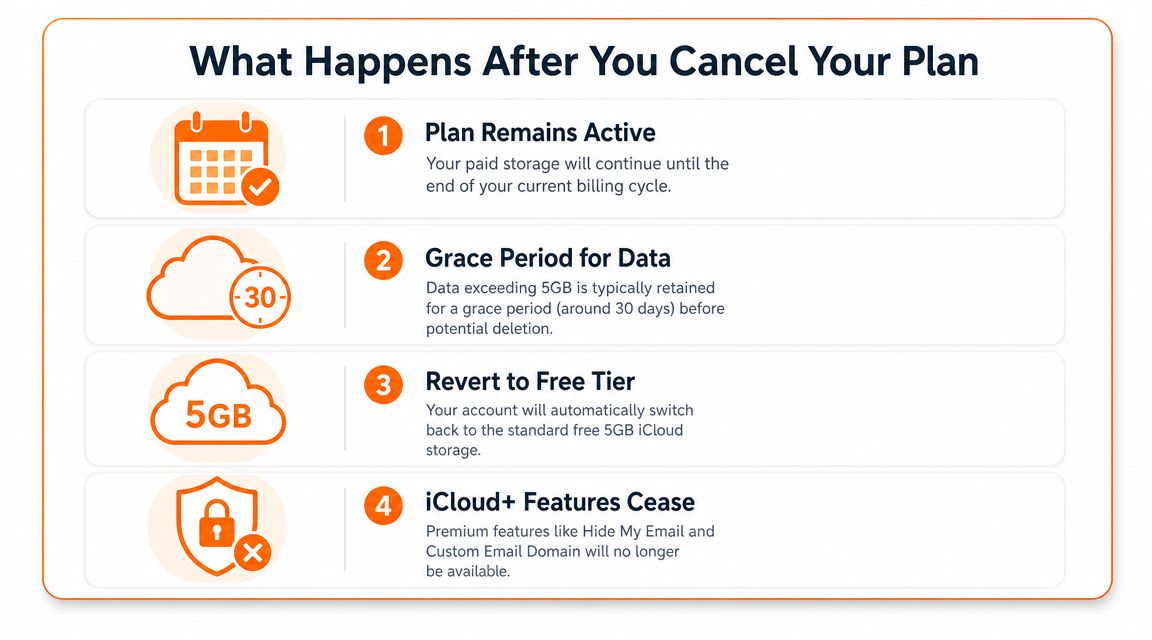
For anyone trimming recurring costs, that timing matters. You are not buying yourself instant savings for the current month. You are stopping the next charge and giving yourself a short window to clean up storage before the free plan takes over.
What changes when the paid period ends
Once the billing cycle finishes, your account drops back to the free 5 GB tier. What happens next depends on one simple question. Are you already under the limit?
- If you're under the limit, the switch is usually quiet and uneventful.
- If you're over the limit, iCloud starts acting more like a full closet than a broken service. New items may not sync, and fresh backups may fail until you delete files or upgrade again.
- If Photos, Drive, or backups matter daily, expect friction fast if you do nothing before the downgrade date.
The key point is practical, not technical. Apple is not usually wiping your data the moment the paid plan ends. The main problem is that your account can stop updating properly if your storage use stays too high.
That is why I treat this as a money decision with a cleanup task attached. The cancellation saves cash. The follow-through determines whether it feels smart next week.
What usually does not happen
Many people worry that canceling means instant deletion. In practice, the more common outcome is restricted syncing and failed backups.
You may still see older files and photos. What often breaks first is the flow of new data into iCloud. That can leave you with a false sense that everything is fine until a phone backup fails right when you need it.
If you want to make sure this recurring charge stays gone, it helps to review your full list of monthly expenses and subscriptions while you are already in cost-cutting mode. Small charges are easier to remove when you catch them together.
The same logic shows up in business software audits too. This guide to eliminate wasted Zendesk spend makes the same point from a company budget angle. Stop paying for unused capacity first, then decide what level you need.
Should You Downgrade or Cancel Completely
Apple treats these ideas as closely related. In practice, cancelling your paid iCloud storage usually means downgrading to the free plan. But there's another option. You can also move from a larger paid tier to a smaller paid tier if you still need more storage.
A simple decision framework
Use this table if you're unsure which move fits best:
| Your situation | Better choice |
|---|---|
| You want to remove the charge entirely | Cancel to the free plan |
| You still need more than the free allowance | Downgrade to a smaller paid plan |
| You use iCloud only for a few essentials | Test whether the free plan works |
| You're deleting constantly to stay under a low limit | A smaller paid tier may be less hassle |
This is one of those places where being frugal and being practical should work together. If cancelling creates constant storage stress, it may not be the best savings move. A lower paid tier can still cut waste without creating daily friction.
Treat it like any other recurring cost review
The best approach is the same one businesses use when they audit software spend. They don't just ask, “Can we cancel this?” They ask, “What level are we using?” That's why this guide to eliminate wasted Zendesk spend is relevant even if you're not managing business tools. The logic is identical. Trim the excess first, then decide whether you need the service at all.
If you want to do the same exercise across your personal budget, it helps to keep a clean list of expenses. You'll spot much faster whether iCloud is an outlier or just one of several recurring charges worth rethinking.
Use This Momentum to Find More Savings
Cancelling one subscription won't transform your finances on its own. But it does something useful. It trains you to question automatic renewals instead of accepting them.
That habit matters. Once you remove one recurring charge, you start noticing the others. Maybe it's another Apple service. Maybe it's a trial that rolled into a paid plan. Maybe it's a tool you meant to use more often and never did.
Build a repeatable review habit
A simple monthly subscription review can catch more than you'd expect.
- Scan bank and card statements. Look for recurring merchants, especially digital services and app store charges.
- Check annual renewals too. Some costs hide because they don't appear every month.
- Decide what still earns its place. If you'd hesitate to sign up for it again today, that tells you something.
If you want a broader method, this practical resource on how to identify and cancel subscriptions is worth bookmarking. It pairs well with a regular money check-in.
Turn one cancellation into a system
The true win isn't that you cancelled iCloud. It's that you interrupted autopilot.
Use that energy while it's fresh. Review your app store subscriptions. Check your card statements. Revisit old renewals. If you want another easy place to start, try a saving money challenge that turns small cuts into a visible goal.
If you want a simpler way to keep spotting recurring charges after this, Fintrack can help you review spending patterns, surface subscription payments, and make those “small charge” decisions before they pile up again.