You spot a forgotten streaming subscription on your PayPal activity, cancel it, and assume the job is done. Then another charge arrives because the payment authorization and the merchant's service contract are separate things.
Whether you're dealing with an old free trial, a price increase, a duplicate charge, or a household subscription cleanup, the safest approach is to close both. Below is the PayPal settings path, how to cancel with the merchant, and what to check if billing continues. You'll finish with a repeatable checklist for cancelling a PayPal subscription and catching unwanted renewals before they bill again.
Why Canceling a PayPal Subscription Is Not One Click
You find the merchant under PayPal's automatic payments, select it, and hit Cancel. The screen confirms the change, so you move on. But the service itself may still be active, and the merchant could continue billing through another payment method or pursue any outstanding amount under its terms.
That mismatch catches people who are ending a forgotten trial, responding to a price hike, sorting out a duplicate charge, or cleaning up household subscriptions. PayPal's instructions separate the process into stopping its authorization for future automatic payments and ending the underlying subscription with the merchant. Cancelling the PayPal authorization generally doesn't terminate the merchant's service contract, as PayPal explains in its recurring-subscription guidance.
PayPal controls permission to charge through PayPal; the merchant controls the account, service, and contract. If you only cancel on one side, you may stop the next PayPal charge without closing the subscription, or close the service while leaving an active payment authorization behind.
Practical rule: Treat these as two separate cancellations, and save proof of each one.
If you're trying to get a handle on recurring charges more broadly, Fintrack's guide to managing subscriptions can help you organise the cleanup. For a related example of tracking a purchase through a delivery process, you can also track your DA-1 order status.
The steps below cover the PayPal click path, the merchant-side cancellation, regional rules that may help, and what to do if charges continue. By the end, you'll have a practical checklist and a way to spot future unwanted subscriptions before they bill.
The PayPal Settings Path on Desktop and Mobile
Start with PayPal's automatic-payment settings, not just Activity. A subscription agreement may not appear in the same way as a one-time transaction, so searching only your transaction history can leave the recurring authorization untouched.
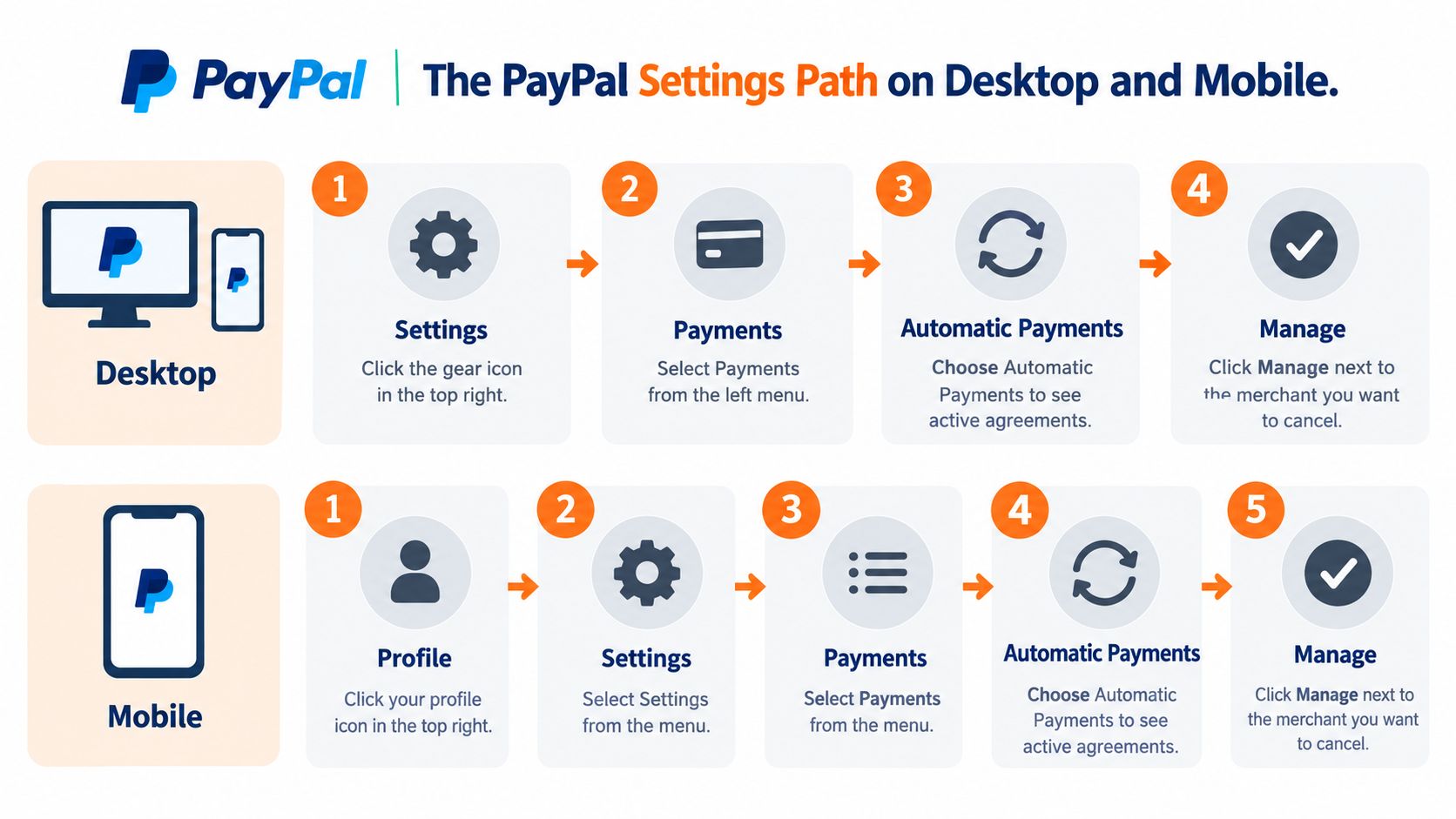
On desktop
- Sign in to PayPal and open Settings using the gear icon.
- Select Payments.
- Open Automatic Payments or Subscriptions and saved businesses. Depending on the account layout, an older label such as Preapproved Payments may appear.
- Select the merchant, review the agreement, and choose the cancellation option. Confirm the change.
In the mobile app
Open your profile or account menu, go to Settings, then Payments, and look for Automatic Payments or Subscriptions and saved businesses. Menu wording can vary between app versions, so if those labels aren't visible, use PayPal's website to check the same account settings.
PayPal Canada's agreement says to cancel at least three business days before the next scheduled payment to stop that payment cycle. If the payment is already too close to the scheduled date, cancellation may stop later automatic payments but not prevent the imminent one; check the transaction and contact the merchant if it goes through. PayPal's Canadian user agreement sets out this timing and the effect of cancellation.
Save the on-screen confirmation and any email PayPal sends. Changing your preferred payment method isn't a substitute: that setting doesn't automatically change the payment method assigned to an existing subscription. If the subscription is tied to another device or app-store account, see this guide to cancelling an app subscription on iPhone. For a membership-specific example, Blind Barrels provides a page to manage your tasting membership.
Why Stopping the Payment Is Only Half the Job
A PayPal automatic payment is a billing agreement, not the merchant's service contract. PayPal provides the payment route; the merchant sets the service terms, renewal conditions, and any rules about ending access or owing for service already provided.
California's Automatic Renewal Law offers a clear example of protections around recurring subscriptions. Under California Business and Professions Code section 17602, businesses must disclose renewal terms, the amount or range of charges, payment frequency, and a cancellation method in a retainable acknowledgment. When someone signs up online, the business must also let them cancel online, at will, without steps that obstruct or delay immediate cancellation.
That gives California consumers a direct route to challenge an obstructive cancellation process. But removing PayPal's authorization alone may not end the merchant relationship or settle an unpaid balance. Use the merchant's available cancellation method too, and keep the evidence that each request was made.
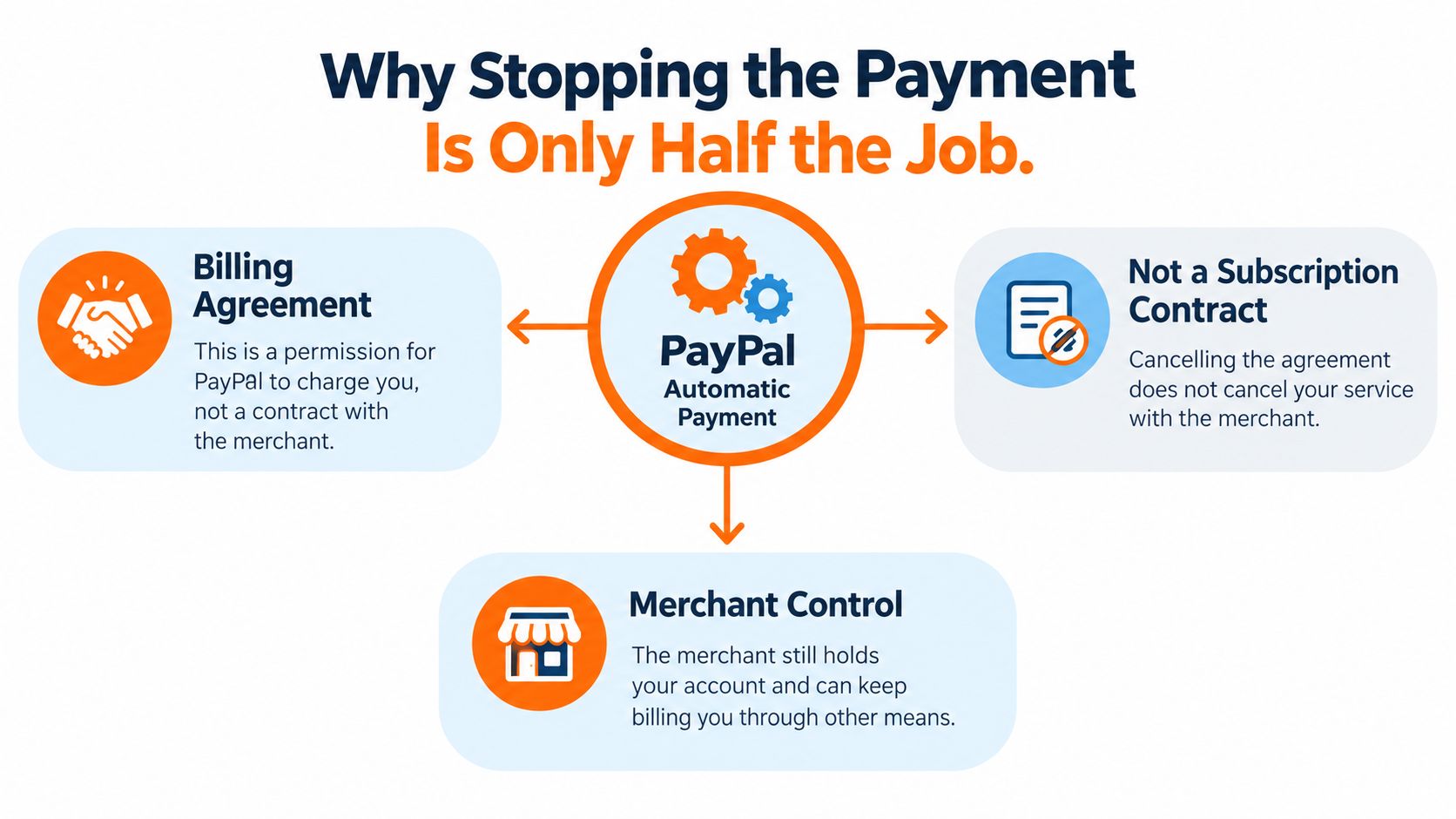
Canadian PayPal users face the same practical distinction. PayPal's agreement says cancelling an automatic-payment authorization stops future payments under that agreement, but it doesn't necessarily cancel the contract or remove amounts owed for services already received. The useful mental model is simple: PayPal is the payment rail; the merchant is the service relationship. Close both.
Skipping the merchant step can leave you responsible for a contract you thought was over. Skipping the PayPal step can leave an authorization active even if you've asked the merchant to close your account. For more on the difference between cancelling a payment and addressing the underlying transaction, read how to cancel a payment in PayPal.
Closing the Subscription With the Merchant Directly
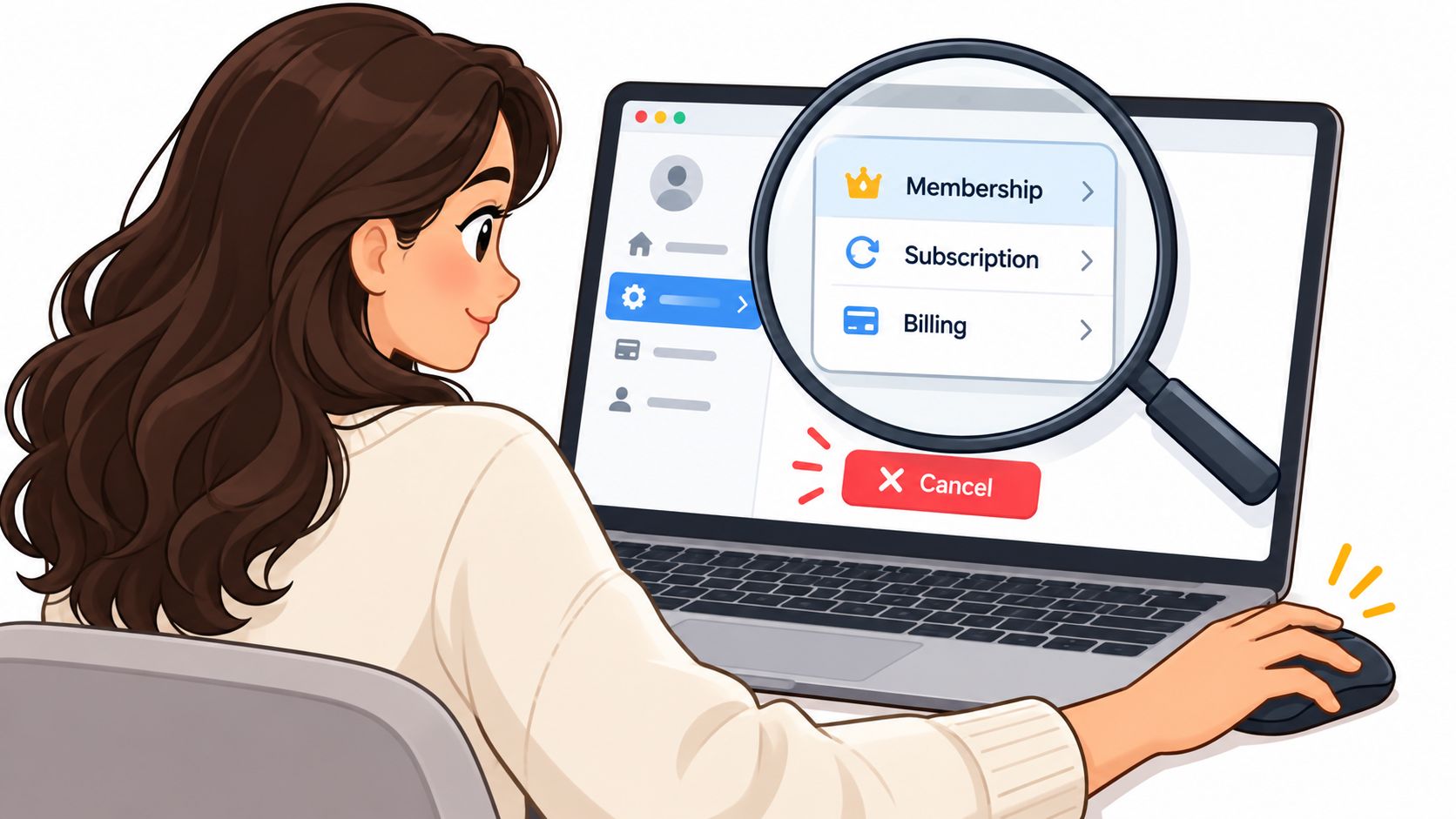
Sign in to the merchant's website or app to close the service account after cancelling its PayPal authorization. Look under Account, Membership, Subscription, or Billing. If there's no clear cancellation button, search the help pages for “cancel subscription” and use the stated support channel. Check whether the process ends the subscription immediately or at the end of the paid term.
For chat or phone support, make the request specific:
Please cancel my subscription effective immediately. Please confirm the effective cancellation date and that no further charges will be attempted. Please also confirm whether any final payment or balance remains due.
Ask for written confirmation before ending the conversation.
Retention offers can turn a cancellation request into a discussion about discounts or pausing the account. Decline clearly if you want to leave: “Thanks, but I'm not accepting an offer. Please complete the cancellation and confirm it in writing.” If support refers you to an account manager, ask which cancellation method applies and have your request recorded in the account.
Keep the merchant's response alongside the PayPal confirmation, including when you made each request and any stated final charge. The effective cancellation date matters: a payment for service already received may still be due under the contract. Ask support to explain any remaining balance rather than treating “cancelled” as confirmation that nothing is owed.
Check what you're ending. A free trial can convert to a paid plan, an annual subscription can renew after months of disuse, and a paused plan can resume. Confirm cancellation rather than accepting a pause. For gym-specific contract steps, see quitting a Gold's Gym membership.
For money already collected, request a refund from the seller. PayPal's guidance on requesting money back explains that refunds normally require seller action. For an unresolved billing issue, use the Resolution Centre workflow and escalate an unresolved dispute to a claim within 20 days.
Your Post-Cancellation Verification Checklist
A cancellation confirmation is a good start, not a reason to stop checking. Keep a small record of what you cancelled, when you requested it, and what the merchant said about the end date.
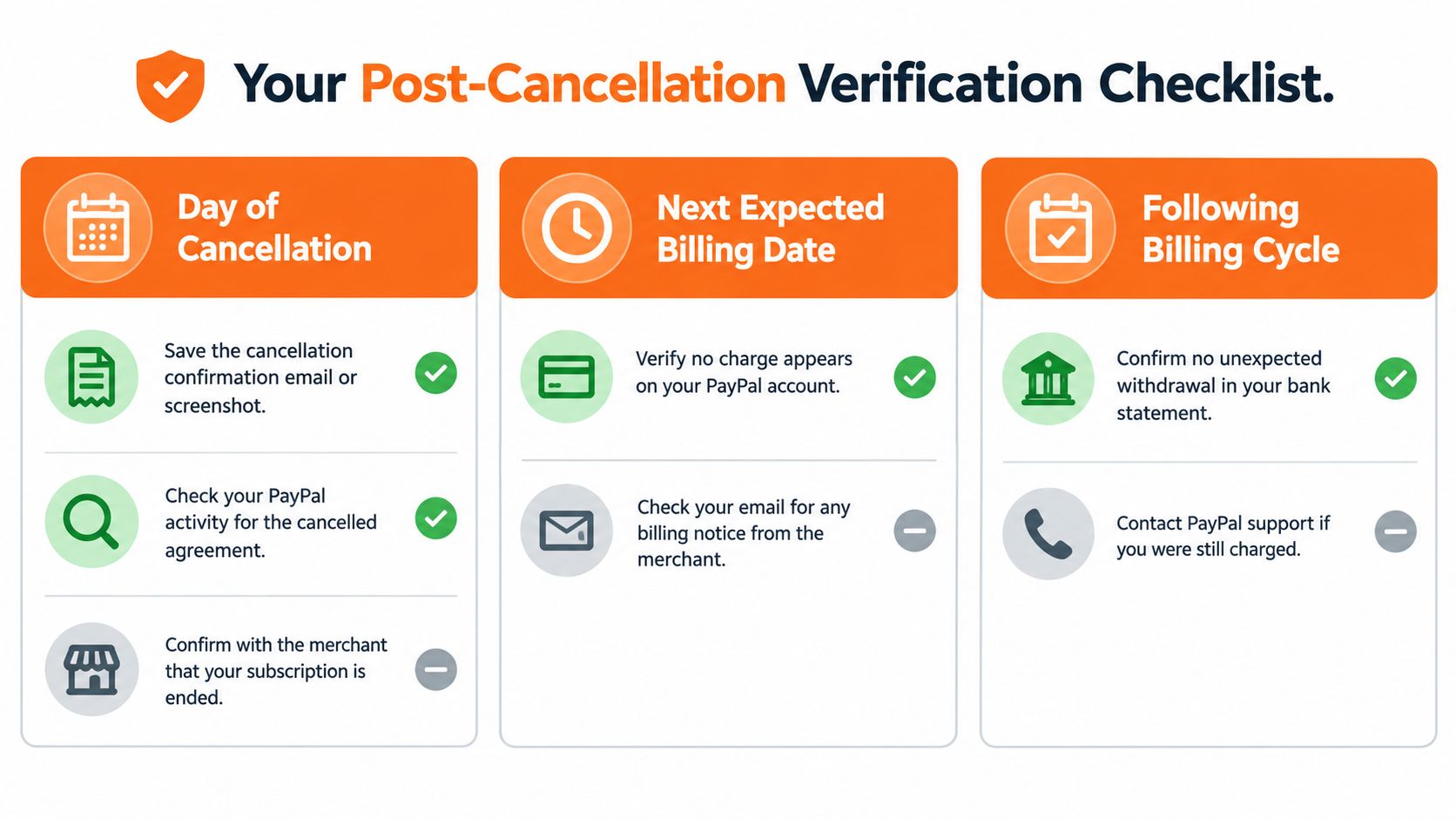
On the day you cancel
- Save PayPal proof: Keep a screenshot of the confirmation screen and the cancellation email, if you receive one.
- Save merchant proof: Store the written confirmation and note its date and time.
- Record the billing date: Check the merchant's account for the next scheduled renewal and any stated final payment.
On the next expected billing date
Review PayPal Activity for a pending or completed payment from the merchant. Then check the linked bank account or card statement, especially if that was the payment source for the subscription. A missing PayPal agreement is not enough on its own; the transaction record and statement show what occurred.
When a charge appears, compare its date with the cancellation date and the merchant's terms. A final charge for service already received may be allowed by the contract, while a new charge after the subscription's effective cancellation date may need to be challenged. Ask the merchant to explain the charge in writing before treating every post-request transaction as an unauthorized one.
During the following billing cycle
Check the statement again and keep any refund documentation. PayPal Canada says refunds to bank accounts may take up to five business days, while refunds to credit or debit cards may take up to 30 days to appear. Those timelines are a reason to track the refund status rather than assume the money is available immediately; see PayPal's information on pending and unclaimed payments.
If you're managing several subscriptions, keep the confirmations together with the merchant names and billing dates. That record makes it easier to spot a missed cancellation or a charge that needs follow-up.
When Charges Keep Coming and How to Escalate
A charge arrives after cancellation. Before challenging it, identify the payment route and what the merchant says it covers: a new renewal, a transaction already processing, or a final contractual payment. Match it against both cancellation confirmations. Your case should explain why that specific charge was improper, rather than saying you clicked Cancel.
For a completed PayPal payment you believe is wrong, open the Resolution Centre, select the transaction, and choose the relevant billing issue. Communicate with the seller through the dispute process so the explanation and response are recorded together. If that does not resolve it, escalate the dispute to a claim within 20 days, as described in PayPal's Canadian dispute guidance. Include your cancellation records and the merchant's response.
A PayPal cancellation does not stop a separate debit drawn directly from your bank account.
In Canada, contact the biller in writing if it continues collecting through a pre-authorized debit (PAD), and retain proof. For an eligible unauthorized or improperly continued PAD, consumers may generally report it and request reimbursement within 90 calendar days of the withdrawal, according to the Financial Consumer Agency of Canada. Ask your bank about a stop-payment request for a single or recurring debit. Lead times and fees vary by institution.
Keep payment recovery and contract cancellation separate: blocking collection does not establish that the merchant has closed the service. If a credit or debit card was charged and the merchant will not resolve it, ask the card issuer about its dispute process. Keep confirmations, transaction details, and correspondence together; the guide to how to audit recurring payments can help organise that record.
Stop Future Surprises With Subscription Visibility
One cancellation often turns up others. You may find a forgotten software plan beside the streaming service you set out to cancel, or a recurring payment that uses a merchant name you don't immediately recognise. Rechecking each account by hand works for a quick cleanup, but it's easy to lose track of dates and payment routes.
A subscription tracker can help by identifying recurring charges, grouping them by merchant, and highlighting transactions that deserve a closer look. It won't cancel a service on your behalf; you still need to complete the cancellation through PayPal or the merchant. But having the merchant and payment details in one place can make it easier to act before another renewal.
Fintrack includes subscription detection alongside spending visibility, and it can help surface where recurring billing is handled so you can reach the relevant provider or payment settings. It also offers a Benefits Wallet for keeping track of available perks such as cashback, credits, and loyalty points. For Canadian users who prefer not to connect a bank, Fintrack supports manual entry, so subscription records can still be organised without a bank connection.
If you want a practical way to keep tabs on recurring charges after this cleanup, see this guide to a free subscription tracker.
Fintrack helps you organise subscriptions, track spending, and keep useful financial details in one place, with manual entry available if you don't want to connect a bank. Visit Fintrack to see whether its subscription and benefits tracking fits the way you manage your money.