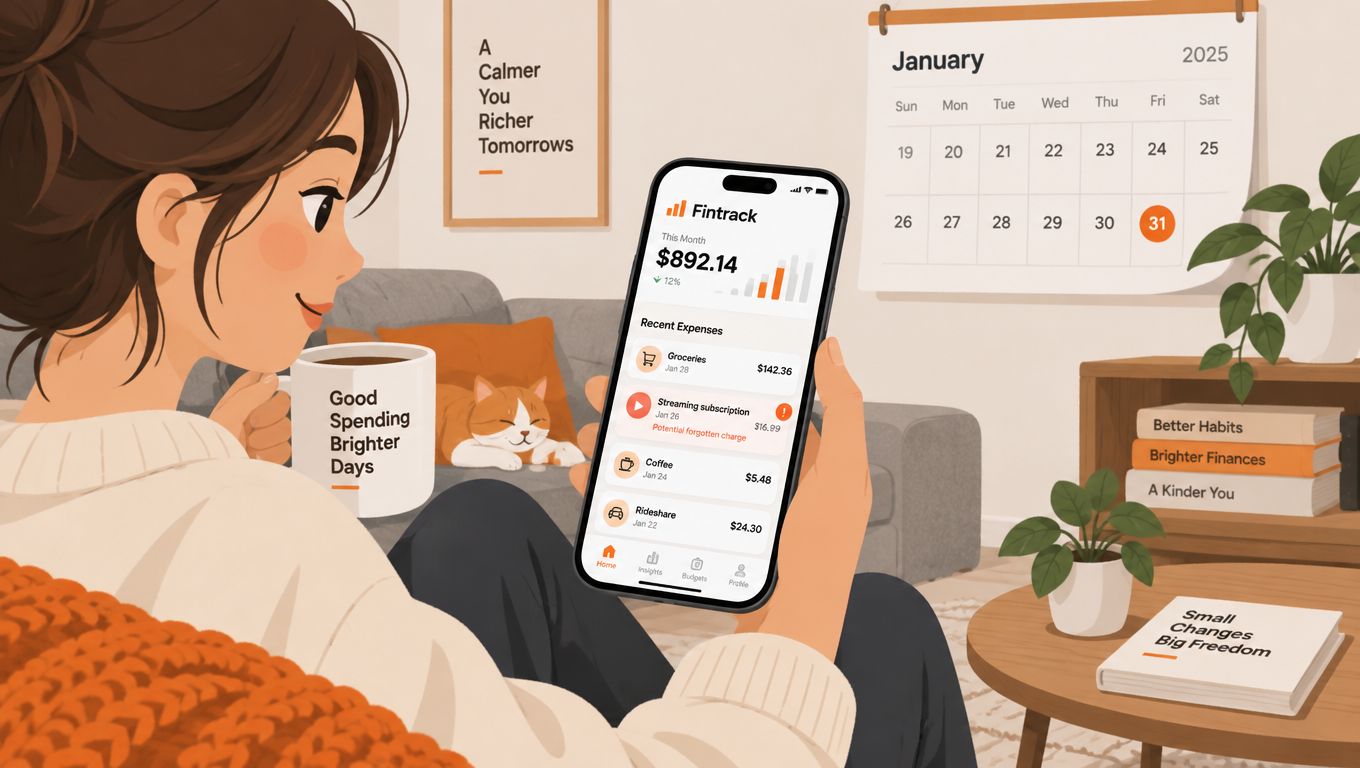
You open your banking app near month-end and spot a streaming charge you'd forgotten about. Your grocery total looks higher than expected, too, but checking individual transactions doesn't explain what you can change.
An expense tracking app for iPhone should turn those purchases into a clear spending picture. Before comparing charts, decide how you want transactions to get into the app, especially in Canada, where bank-connection convenience still comes with questions about access, credentials and reliability.
What an Expense Tracking App for iPhone Does
That forgotten streaming payment and unexpected grocery total need different responses. You might cancel the subscription, but groceries need a closer look at shopping patterns, household purchases and categorisation.
An expense tracker records what you spend, sorts purchases into categories and totals them so you can see where your money goes. Think of a shoebox of receipts: it contains information, but it can't tell you whether takeout is squeezing your grocery budget.
A useful app works more like a sorted filing system. Instead of opening receipts individually, you filter by dining out and see the purchases behind the total.
Record, categorise and review
These jobs need to happen in order:
- Record the purchase. Capture its amount, date, merchant and account, whether it arrives automatically or you enter it yourself.
- Categorise it correctly. A supermarket purchase might be groceries, household supplies or a mixture. Merchant names alone won't always settle that.
- Review the result. Compare spending with your available money and decide what needs attention before making another purchase.
Transactions generally arrive through a bank connection, a file import, such as CSV or a supported statement format, or manual entry. Receipt capture can help with entry, but you still need to check the extracted amount and category.
A manual or imported record can be just as complete as a synced record. Completeness comes from including every relevant account and purchase, not from having an active bank connection.
Choose a system you'll maintain
The iPhone's advantage is proximity: it's usually with you when you pay. Recording a coffee at the counter is easier than reconstructing cash spending later.
A spreadsheet can perform the same basic work, but you'll maintain the categories, formulas and import process yourself. Apps such as Goodbudget are worth considering if you prefer deliberate, hands-on entry rather than automatic account access.
If you also pay for work-related items, the guide to expense tracking with My Money Mentor Plus offers a useful companion perspective. Keep business purchases identifiable rather than burying them in personal categories.
A useful tracker should answer “Where did my money go this month?” in under a minute.
iOS Features That Make Daily Tracking Easier
Try recording a hypothetical $12 lunch before exploring the reporting dashboard. If the app supports Siri or Shortcuts, try entering the amount, merchant and category together, aiming for a process you can finish in under ten seconds.
That's a usability target, not a promise every app meets. A quick-entry screen you understand is more useful than a voice feature that repeatedly needs corrections.
Test features on your own phone
Use this checklist during your first week. These are features to test, not capabilities to assume from an App Store description.
iOS features to check and why they matter
| Feature | Why it helps | What to check |
|---|---|---|
| Home Screen widget | Shows month-to-date spending without opening the app | Updates after a new entry and shows a budget bar |
| Siri or Shortcuts | Logs a purchase by voice or with one tap | Accepts amount, merchant and category in one phrase |
| Share Sheet or Files import | Brings in a bank CSV file or a receipt photo | Accepts the exact file format your bank exports |
| Face ID or Touch ID lock | Keeps account history private if the phone is lent | Re-locks when the app goes to the background |
| Push notifications | Flags large or unusual charges | Lets you set amount thresholds and quiet hours |
| iCloud or device sync | Keeps iPhone and iPad data matched | Shows sync status and handles edits made on two devices |
| Offline entry | Logs purchases with weak signal | Saves entries locally and syncs them later |
After adding the lunch, check whether the widget changes. A spending total without a visible refresh state can leave you unsure whether you're looking at current information.
For file imports, test an actual bank export. CSV support doesn't mean every CSV layout works, and accepting receipt photos doesn't necessarily mean the app can read a statement PDF.
Check privacy and reliability in ordinary situations
Open the transaction history, switch to another app, then return. Check whether authentication is required again and whether sensitive amounts appear in the app-switcher preview.
For offline entry, use Airplane Mode to save a test purchase, reconnect and confirm it appears exactly once. If you use an iPad too, edit a category on each device and check how the app resolves the changes.
For alerts, distinguish newly received information from newly made purchases. The guide to real-time expense tracking helps frame what timely spending visibility should accomplish, but your own test should establish when entries actually arrive.
Score each feature yes, partly or no. Keep the app that performs well on the features you'll use most, rather than rejecting a workable setup because it lacks an impressive but unnecessary extra.
Privacy and Bank Connection Questions to Ask
Automatic syncing saves entry work, but you need to understand who receives access and how. A bank-branded sign-in screen, a credential-sharing service and an uploaded statement aren't equivalent arrangements.
Canada's Department of Finance consumer-driven banking framework describes secure API-based sharing, clear consent, annual reconfirmation, consent dashboards and withdrawal of access, while noting that implementation is still underway. Don't assume that this access model is available for your bank and chosen app.
Four ways data reaches an expense app
| Method | How data arrives | Trade-off |
|---|---|---|
| Secure bank connection (consent-based) | Bank shares transactions through an approved interface after you consent | Fewer credentials shared; Canadian coverage must be checked by institution |
| Credential-based syncing | A connection provider signs in using your online banking username and password | May reach institutions without approved interfaces, but exposes credentials to an additional party |
| File import (CSV or statement) | You download a file from your bank and upload it | Avoids ongoing bank access; requires a routine and still shares the file's contents |
| Manual entry | You type each purchase or photograph a receipt | Full control over what you submit; takes daily effort |
Ask before authorising access
Don't connect an account until you can answer these questions:
- Password handling. Does the app or its connection provider receive or retain my bank password?
- Revocation. Can I withdraw permission inside the app, and does my bank offer a separate access control?
- Historical records. Can I delete imported transactions, receipts and associated profiles?
- Policy access. Can I reach the privacy policy and request controls from Settings?
- Connection failures. Will the app identify missing dates and prevent duplicates when access resumes?
Disconnecting isn't the same as deleting. Ask what remains after you stop syncing, including uploaded receipts and information held by service providers.
California readers should also check applicable rights: the California Attorney General's CCPA guidance explains rights to know about collection and use, request deletion subject to exceptions, and opt out of sale or sharing for covered consumers and businesses. Look for usable controls, not just a policy that mentions them.
Connection rule: If you can't understand how access works or how to withdraw it, start without linking the account.
A tracker that works without a bank connection is a practical option when you want manual control. If a feed breaks later, preserve its last successful date and import only the missing period rather than starting the entire history again.
How to Set Up Your Tracker in One Evening
Keep the first setup focused on a clean, understandable month. You don't need years of historical transactions or a category for every type of shop before the app becomes useful.
Build a clean starting record
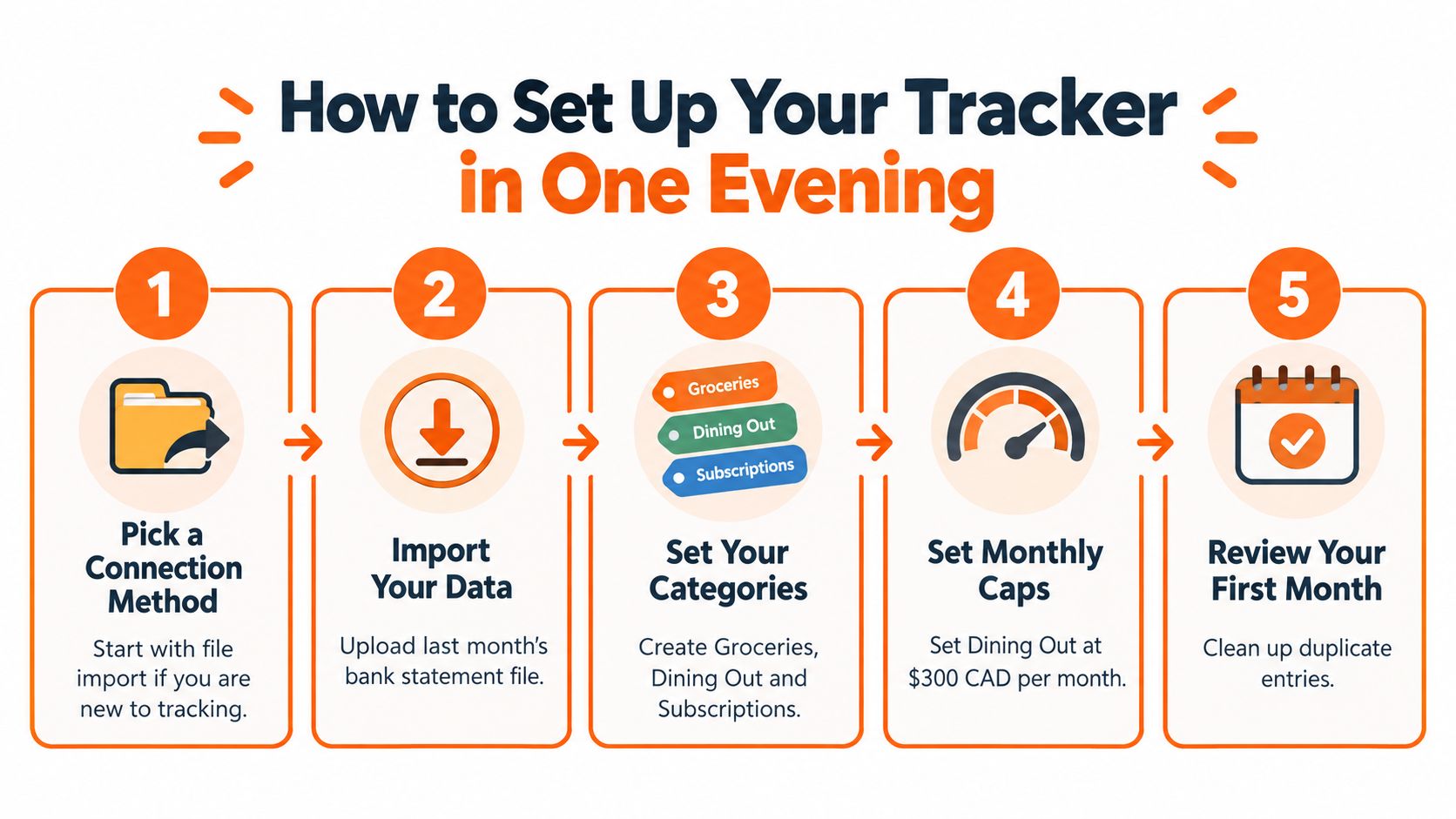
Choose the connection method first. Start with file import if you're unsure about account access, or manual entry if you want to begin with current purchases. Confirm the app accepts your bank's export before uploading sensitive information.
Pick your start date and home currency, then consider importing the last 30 to 60 days as a manageable starting window. Keep Canadian-dollar and US-dollar accounts distinguishable, and check how the app handles conversions before combining totals.
Create six to eight broad categories. A starting set could include shelter, utilities, groceries, dining out, transportation, subscriptions, personal spending and savings. Treat savings as an allocation or transfer, not consumption, so moving money between your own accounts doesn't inflate expenses.
Categorise the most recent month in one sitting, checking ambiguous merchants rather than accepting every suggestion. If merchant rules are available, use them for predictable purchases, but don't automatically label everything from a mixed retailer as groceries.
Fill the gaps. Add cash purchases and anything missing from the imported period, using notes to distinguish commuting from travel or groceries from restaurant meals. Mark these entries clearly if a delayed bank feed might bring in the same purchases later.
Choose a large-charge alert and a subscription-renewal reminder where supported. Set category caps from your actual available money, rather than copying a suggested amount from an illustration.
Book a weekly review. Reserve about 15 minutes on a consistent day to resolve uncategorised entries, check upcoming bills and compare purchases with the original records.
Give the biggest expenses useful categories
Shelter, food and transportation deserve clear labels: Statistics Canada reports average Canadian household spending on goods and services of $67,126 in 2021, including $21,106 on shelter, $10,305 on food and $10,099 on transportation.
Those averages aren't spending targets. Separate groceries from dining out because they call for different decisions, even though both belong under food.
The broader CPI basket also gives substantial weight to those categories, but it isn't a prescription for your household. Your rent, commute and dietary needs determine what's realistic.
Setup checkpoint: Every purchase in your starting period has a category, and every difference from your statement has an explanation.
A small discrepancy is worth investigating, not automatically accepting. Check posting dates, refunds, transfers and excluded accounts before changing transactions just to make the totals agree.
Use the daily expense tracker guide to turn the initial cleanup into a repeatable capture habit. The setup is finished when you know what to record next and where to review it.
Common Pitfalls and How to Avoid Them
An inflated restaurant total might mean overspending, but it might also mean you counted an authorisation and its settled charge separately. Before tightening a budget, check whether the underlying records are right.
A pending hold and a posted payment can have different amounts, particularly when a tip or deposit is involved. Don't remove an entry solely because the merchant name repeats.
Common tracking pitfalls and fixes
| Pitfall | Warning sign | Fix |
|---|---|---|
| Counting pending and posted charges twice | The same hotel or coffee appears twice | Keep the posted entry and delete the confirmed duplicate pending entry from the tracker |
| Missing mobile wallet and in-app purchases | Totals run below your statement | Check wallet activity and subscription receipts weekly |
| Too many categories | You stop categorising by week two | Start with six to eight and split later |
| Alert overload | Notifications get ignored within days | Raise thresholds and mute low-value alerts |
| Forgetting subscriptions after a free trial | A charge appears with no clear source | Review the subscription list monthly |
| Treating the app as your bank record | Totals drift from statements and nobody checks | Reconcile monthly and report suspicious charges to the card issuer |
Check the payment trail, not just the feed
The Bank of Canada's 2024 Methods-of-Payment Survey found that almost 5% of transactions used mobile payments, up from less than 3% in 2023, and nearly 60% of mobile payers reported using a digital-wallet app.
A wallet purchase may already appear in your card feed. The task is to confirm it's included, not add another expense merely because you found it in a different place.
Compare merchant, amount and date across wallet activity, receipts and statements. Subscription receipts can also explain an unfamiliar billing descriptor or a combined app-store charge.
Keep tracking separate from money movement
Credit-card repayments are another source of inflated totals. If the original purchases are already recorded as expenses, paying the card from your chequing account is a transfer, not another round of spending.
Apply the same care to reimbursements and refunds. Link a returned purchase to its original category rather than treating every incoming payment as new earnings.
Monthly reconciliation should leave a short list of explained timing differences, not unexplained gaps. When the issue is an unfamiliar charge rather than a bookkeeping mismatch, investigate the transaction itself before changing its category.
Telling Duplicate, Subscription and Unauthorized Charges Apart
An unfamiliar merchant name isn't enough to establish fraud. Start with the transaction's status, then check whether you or an authorised household member can identify the purchase.
Sort the charge before acting
Possible duplicate authorisation. Compare the merchant and amount, then check whether one entry is pending and the other posted. If you recognise the purchase, monitor the hold or ask the issuer about it; don't wait if you suspect unauthorised use.
Recurring subscription. Match the charge against your subscription list, merchant account and renewal emails. A subscription tracker can organise the review, but the merchant's billing record confirms what renewed.
An unusual but legitimate purchase may be a shared bill, a forgotten order or a retailer using a different billing name. Once confirmed, add a note so the same descriptor won't cause confusion again.
Potentially unauthorised transaction. Save the transaction details, date, amount and relevant merchant messages, then contact your card issuer through its official app or the number on your card. Don't delay reporting while trying to build a perfect evidence file.
Keep the issuer involved
The Financial Consumer Agency of Canada says maximum consumer liability for an unauthorised transaction on a bank-issued credit card is generally $50, unless the consumer demonstrated gross negligence in protecting the card, account or authentication information, and advises reporting suspicious activity without delay.
For a parent or older relative receiving suspicious renewal messages, Gini Help's guide to protect seniors from subscription fraud provides a focused companion resource. Verify the charge independently rather than following payment links in the message.
Your tracker helps organise the evidence. The card issuer handles the dispute, and Canadian protections shouldn't be assumed to apply unchanged to US accounts.
Use Cases for Individuals, Households and Rewards
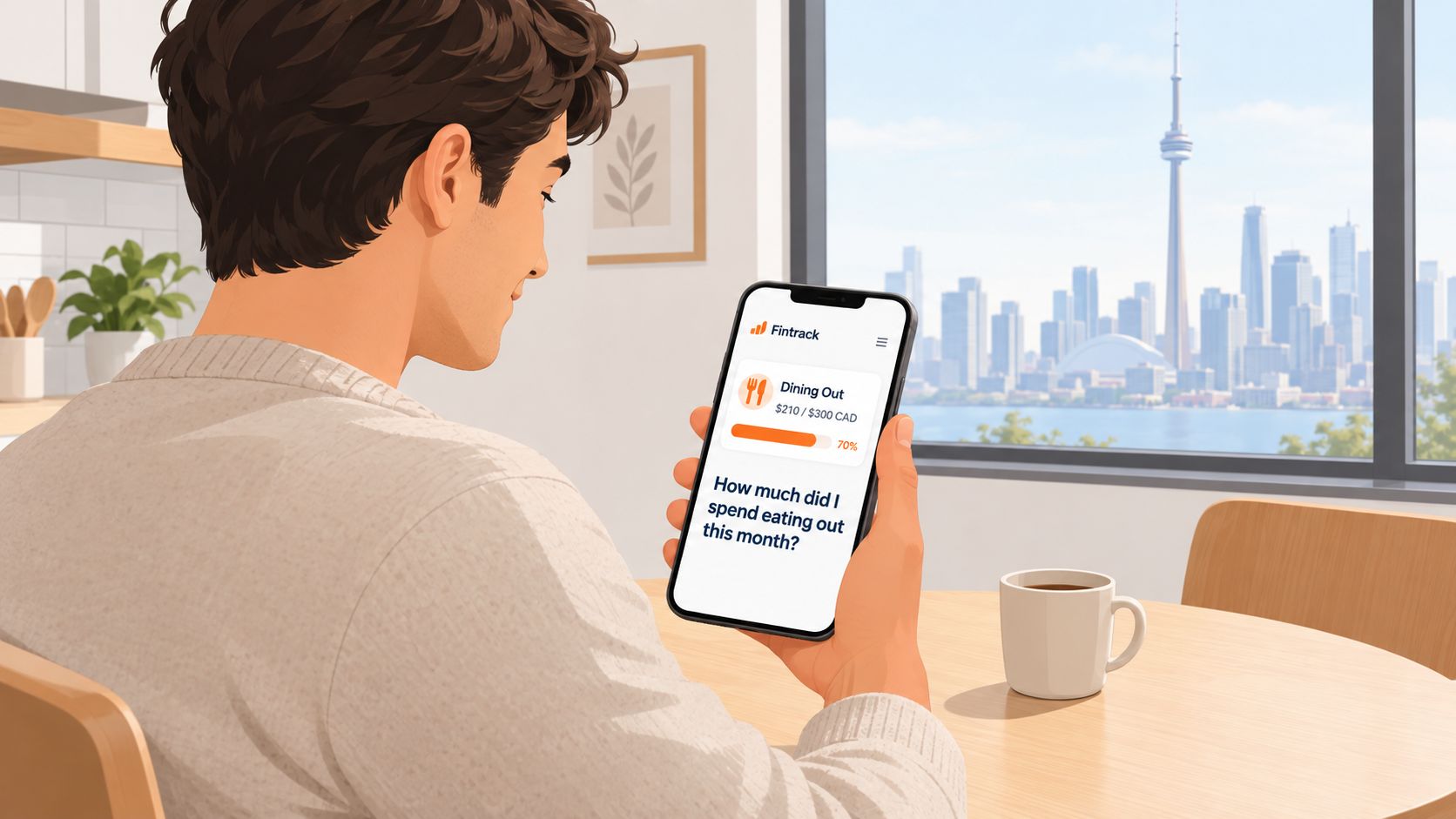
Say a renter in Toronto wants to stop restaurant spending from crowding out the rest of the month. The useful setup is a separate dining-out category with a monthly cap, not a complicated dashboard.
They record takeout, restaurant meals and delivery charges consistently, then ask the conversational assistant, Finny, “How much did I spend eating out this month?” The answer provides a starting point, but the transaction list still matters when checking whether groceries or reimbursed group meals were included incorrectly.
Shared bills without merging every purchase
A couple sharing rent and utilities may still want separate personal spending. Their setup choice is shared household categories alongside personal records, with an agreement about what each person can see.
Each person logs their purchases and marks shared expenses consistently. If one partner pays a grocery bill and receives a reimbursement, the household view should count the groceries once rather than treating the reimbursement as fresh household income.
Before using household planning tools, agree on:
- Visibility. Decide whether personal transactions stay private or appear in a shared view.
- Responsibility. Assign someone to check each shared account and bill.
- Reimbursements. Choose a consistent way to record money paid back between partners.
Recurring costs and benefits need different reviews
Consider someone with three streaming services and a gym membership. Their setup choice is a recurring-charge list, using subscription detection to surface candidates and checking each against the merchant account before deciding what to cancel.
Detection isn't cancellation. Keep the confirmation email and check subsequent billing so a cancellation request doesn't become an assumed result.
Rewards need a separate view because loyalty points and unused credits aren't the same as spendable cash. A Benefits Wallet can organise cashback, credits, loyalty points and expiring offers, while the loyalty points app guide helps frame what to keep visible.
For this user, the useful result is knowing which existing benefit applies to a planned purchase. Buying something unnecessary to use an offer defeats the purpose, and a pending reward shouldn't reduce recorded spending before it's received.
Choose Your First Week Routine
Treat your first week as a practical test of how you capture and review spending. Whether you connect an account, import a file or enter purchases yourself, check that cash, card and mobile-wallet activity is represented accurately.
Keep the setup if you can explain the totals and complete the review comfortably. If entries are missing, check account coverage, import dates and purchases saved for later. If categorising takes too long, combine categories before adding more automation.
For shared renewals, agree on who pays and who can join before recording contributions. If a family subscription is involved, the guide to split Spotify subscription costs with family can help you review the arrangement. Check the plan's eligibility terms rather than assuming everyone can join.
Choose a routine you can maintain, not the app with the longest feature list. Fintrack brings income, expenses and budgets together in one dashboard, so you can see how its everyday spending view fits your routine. Visit Fintrack to get started.