You and your partner started a budget in a notebook, kept it going for a fortnight, then lost track of groceries, a card payment and a bill that arrived early. Now you want one place to see what's coming in, what's due and what you can safely spend.
A personal budget template in Google Sheets can do that without connecting your bank account. This setup guide uses Canadian spending categories and a cash-flow-first approach: plan around dependable income, prepare for irregular bills and decide which payments come next. You can build it from a blank spreadsheet, so there's no template download required.
Build the Three-Tab Budget Layout
Start with a file that answers three questions: What did I plan? What happened? What's left? Keep those jobs separate so entering a purchase doesn't change your spending target.
Create the tabs below using the plus button at the bottom of Google Sheets. The Savings Goals tab is optional, but useful when money needs to stay reserved rather than look available for everyday spending.
The tabs in a working personal budget template
| Tab | Purpose | Key columns |
|---|---|---|
| Plan | Planned amount for each spending category | Category, Need or Want, Planned, Actual, Difference |
| Transactions | Every purchase and bill as it happens | Date, Merchant, Amount, Category, Need or Want |
| Summary | Monthly overview of income, spending and savings | Income, Total spent, Left to spend, Savings rate |
| Savings Goals | Emergency fund and other goals | Goal, Target, Current balance, Monthly contribution, Target date |
Keep your personal budget template in Google Sheets manageable
On Plan, give each category a row. Start with about 12 to 15 categories, then split a category only when the extra detail would help you make a decision.
On Transactions, record purchases and bills, not planned allowances. Use matching category names across both tabs, preferably with a dropdown created through Data → Data validation, so Groceries and Grocery don't become separate categories.
On Summary, reserve clearly labelled cells for income and the calculations you'll use during reviews. Keep savings transfers separate from purchases so moving money between your own accounts doesn't inflate spending.
If you're deciding how to organise needs, wants and savings, The Money Maniac's 50 30 20 budget examples for different situations offer another way to think about the layout. Treat any allocation framework as a starting point, not a requirement that overrides your bills.
Practical rule: Add detail when it helps you choose an action, not simply because a spreadsheet has room.
You don't need charts, colour-coded dashboards or complicated formulas on setup day. You do need a Transactions tab you'll keep current, because an attractive summary can't account for purchases you haven't entered.
Category Targets Canadian Households Track
A household with irregular income needs a budget that can handle a lean month, not just an average one. Canadian spending figures can help you choose categories, but they are reference points, not instructions for dividing your income. In 2023, households spent an average of $76,750 on goods and services, with shelter, transportation and food accounting for 63.6% of consumption, according to Statistics Canada's Survey of Household Spending.
Major spending shares and how to track them
| Category | Share of 2023 household spending | How to track it |
|---|---|---|
| Shelter | 32.1% | Rent or mortgage, property tax and utilities on separate rows |
| Transportation | 15.8% | Fuel, transit, insurance and car payments on separate rows |
| Food | 15.7% | Groceries and restaurants on separate lines |
| Recreation | Track as a separate category | Entertainment and travel on separate lines |
Provincial averages also vary. Alberta households averaged $88,186 in spending, compared with $64,227 in New Brunswick. These annual totals describe households, not what yours can afford. For your plan, start with the lowest typical take-home income in an uneven month, then set aside money for irregular bills before deciding what gets paid first. Use the guide to personal budget categories to choose rows that suit your household and province.
Split the costs you can act on
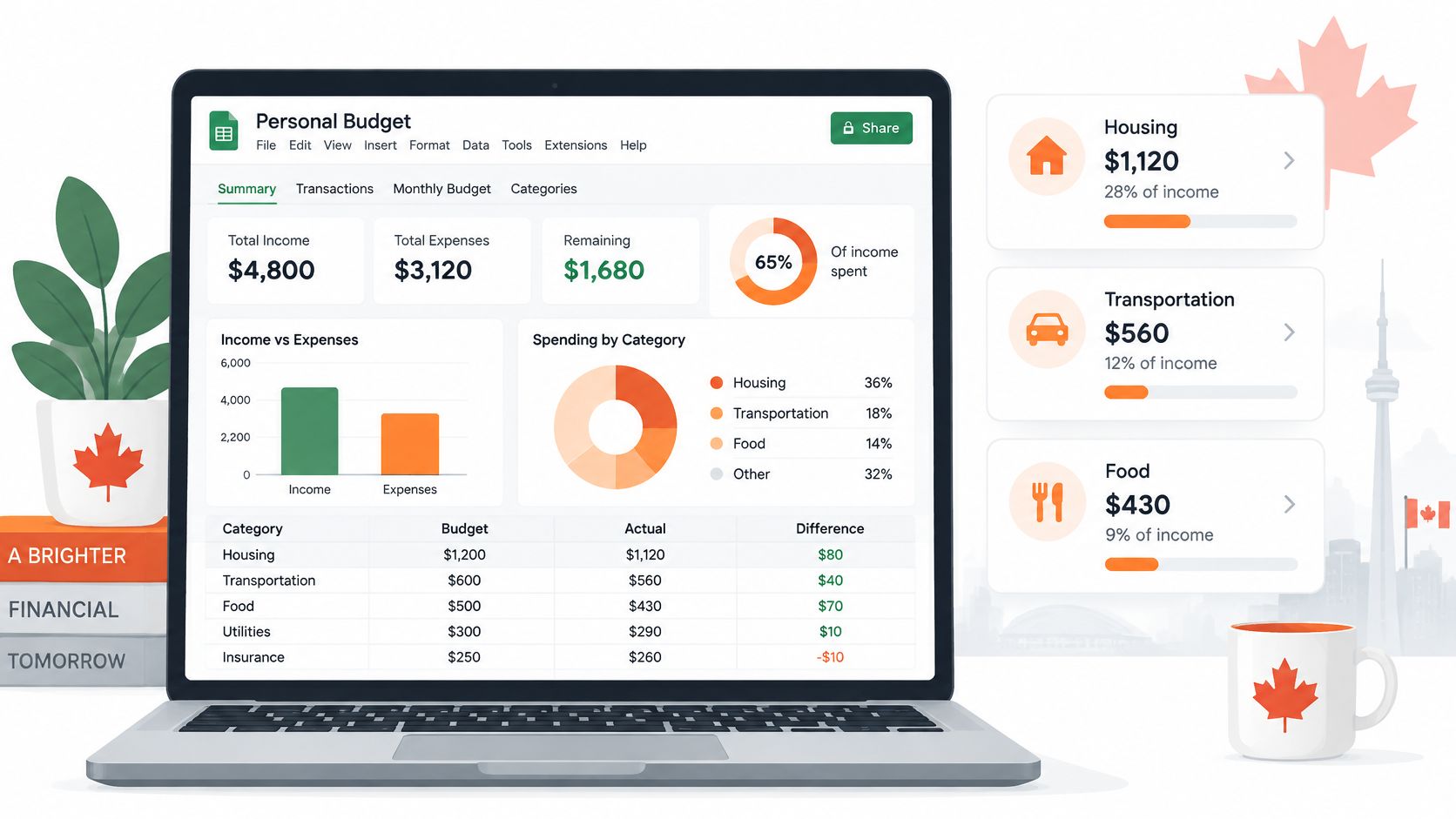
A single transportation total can hide the reason spending rose. Separating fuel, insurance and repairs makes it easier to spot which cost changed. Transportation spending rose 19.7% between 2021 and 2023, according to the Government of Canada household-spending summary. Use your own records to decide whether a change reflects local prices, household needs or a cost you can adjust.
For comparison with national shares, divide a category by total consumption spending. Separately compare spending with take-home income to see whether your plan fits the money available. A spreadsheet can organize these figures, but it cannot decide which bills your household should prioritize.
How to Copy the Template and Enter Your First Month
Your first task is to create a working file you can edit without worrying about damaging an original. If you're building from scratch, the blank spreadsheet becomes your reusable master once you've added the tabs and column headings.
Set up the file before setting targets
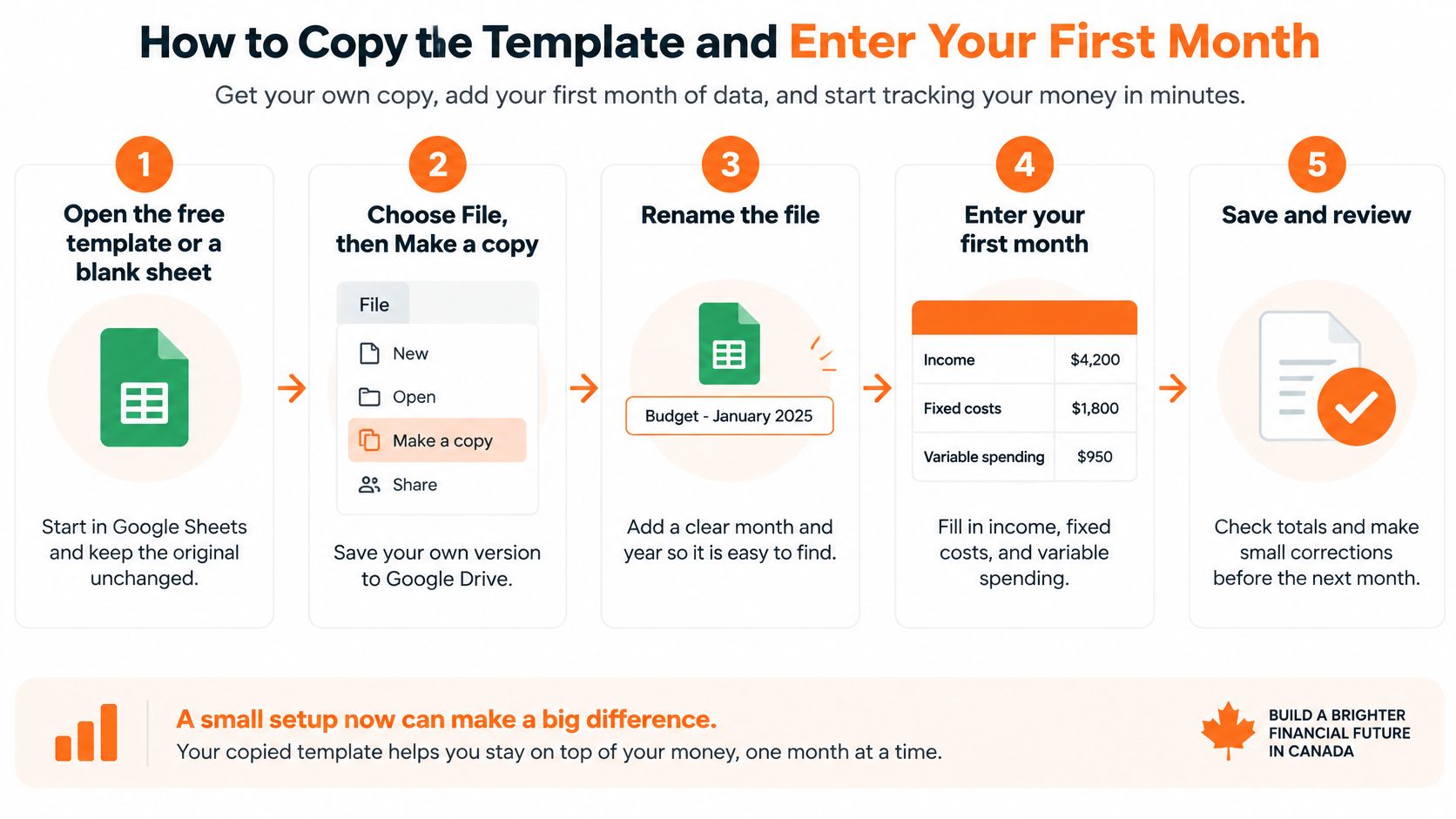
Open a template or a blank spreadsheet. Choose File → Make a copy when you want to preserve the original. Don't enter personal financial details into a publicly editable example.
Rename your copy. Use a clear name such as Household Budget 2026, then label the month inside the file. Names like Copy of Budget Final make it harder to know which version you're maintaining.
Observe spending before locking in targets. The Financial Consumer Agency of Canada's budgeting guide recommends tracking all purchases and bills for one or two months before creating or revising a budget. Include small purchases such as daily coffee, because leaving them out makes the starting picture look more comfortable than it is.
Enter take-home income. Use the money that reaches your account after deductions, not gross salary. Gross pay inflates the apparent surplus with money you can't allocate.
Make the first plan realistic
List fixed bills with amounts and due dates. Add Due date and Payment status columns to Plan if they help you manage timing. A bill due before payday needs attention even when the monthly totals appear balanced.
Tag each purchase as Need or Want. Decide what those labels mean for your circumstances rather than judging the merchant alone. A pharmacy purchase could be essential medication or an optional cosmetic item.
Compare planned and actual spending at month-end. Adjust targets when a bill changes or when your original estimate was unrealistic. Don't rewrite actual spending to make the plan look successful.
If pay varies, use your lowest typical income month as the planning baseline, not your strongest month. Add a separate irregular-income row, and decide how to allocate extra money only after it arrives.
If you share bills, give your partner edit access only if you're both comfortable with that visibility. Agree on a common Need or Want rule, and decide whether personal purchases will be itemised or entered as an agreed personal allowance.
A useful first month reveals the gaps. It doesn't need to produce a perfect match between your plan and your spending.
Your Difference column should make overruns visible. That's information you can use, not evidence that you've failed at budgeting.
Formulas That Do the Math for You
Set up a small calculation area on Summary before typing formulas. For this example, put take-home income in B2, total actual spending in B3, essential monthly expenses in B4 and your current emergency savings balance in B5.
Use positive amounts for expenses. Keep income and transfers out of the purchase total, and use the same treatment consistently throughout the workbook.
Core budget formulas with a worked example
| Task | Formula |
|---|---|
| Money left to spend | =B2-B3 |
| Percent of income spent | =IFERROR(B3/B2,0) |
| Savings rate | =IFERROR((B2-B3)/B2,0) |
| Emergency fund target | =B4*3 or =B4*6 |
| Emergency fund progress | =IFERROR(B5/B6,0), with your chosen target in B6 |
Money left to spend shows income minus recorded spending, before you reserve any remaining money for savings or other commitments. Percent of income spent shows how much of your take-home income your spending consumed.
The savings-rate formula shows the potential share left to save, assuming the remainder is retained rather than spent later. Emergency-fund progress compares the balance you've accumulated with your target.
Turn the results into decisions
In a hypothetical month with $3,400 take-home pay and $2,615 spent, the remainder is $785. That's a potential savings rate of 23.1% if you retain the entire remainder.
Spending above 100% of income means the month isn't funded by that month's income alone. A negative remainder calls for a spending reduction, additional income or an explicit decision about which existing funds will cover the gap.
The Financial Consumer Agency of Canada's emergency-fund guidance recommends working towards three to six months of regular living expenses. Use your essential-expense figure to make that target specific, and give planned contributions their own line.
Pull category totals into Plan
With categories in Transactions column D and expense amounts in column C, enter =SUMIF(Transactions!D:D,A2,Transactions!C:C) in Plan's Actual cell for the category in A2.
Use =C2-D2 for Difference when Planned is column C and Actual is column D. A negative result then means you spent more than planned.
For a simple setup, keep each monthly workbook's Transactions tab limited to that month; otherwise SUMIF will include other months too. The monthly budget calculator guide can help you sense-check the totals.
Format ratios as percentages, then copy row formulas down using the small square at the cell's corner. If income is blank, treat the displayed zero from IFERROR as incomplete information, not a healthy result.
Track Spending and Import Bank Data Without Stress
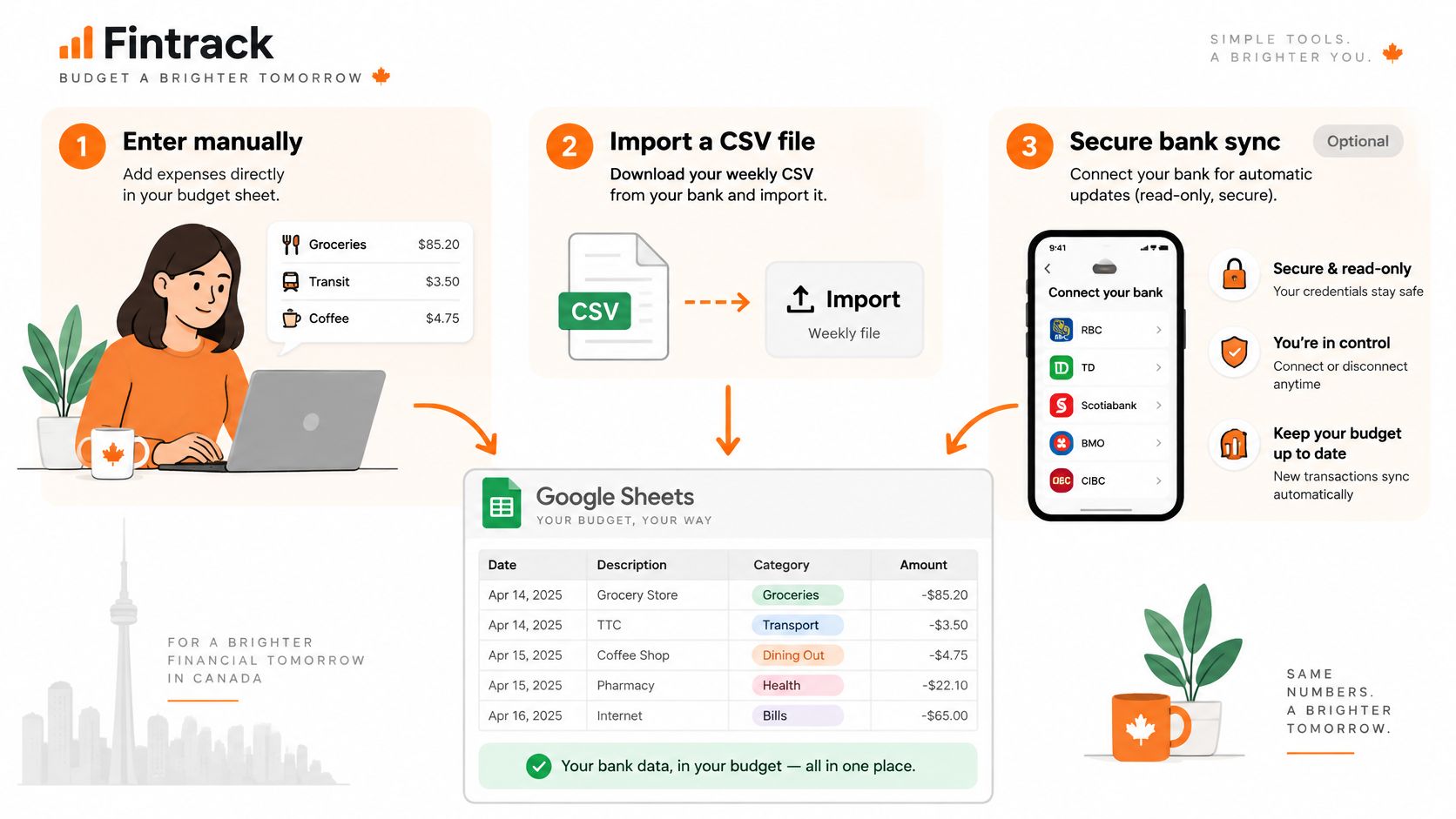
A spreadsheet doesn't automatically sync with your bank. You can maintain it without linking an account, but you'll need a repeatable way to get transactions into it.
Choose the approach you'll use:
- Manual entry: Add purchases as they happen, including cash spending that won't appear on a bank statement.
- Weekly CSV import: Download transaction files from your bank and bring the new rows into Google Sheets.
- Monthly statement check: Compare your records with statements to catch omissions, even if you enter purchases manually.
Import into a staging tab first
Download a CSV transaction file. Choose the account and date range you need. Keep a note of the last imported date so overlapping downloads don't create duplicates.
Choose File → Import → Upload. Import the CSV into a new staging sheet rather than replacing Transactions. Bank exports have different layouts, and importing doesn't automatically map them to your budget columns.
Match the columns by hand. Copy the bank's transaction date, description and spending amount into Date, Merchant and Amount. Check whether dates use day-first or month-first formatting before moving the rows.
Standardise amounts and inspect overlaps. Some exports show expenses as negatives; others separate debits and credits. Convert spending to your chosen positive-expense convention and compare overlapping rows by date, merchant and amount before removing anything.
Check your first import against the statement by hand. Don't count a credit-card payment as another purchase if you've already recorded the purchases on that card, and don't classify a transfer between your own accounts as income.
Try a 10-minute weekly appointment as a starting routine: bring in new rows, categorise blank entries and read Summary. If the process takes longer, narrow the task rather than abandoning it.
The transaction history guide offers a useful way to organise those records. Keep downloaded files somewhere private, and don't share the budget more widely than necessary.
Fixing a Budget That Stops Adding Up
When the totals stop working, check both the records and the underlying cash flow. A formula error needs a different response from a genuine shortfall.
In 2025, 53% of Canadians reported struggling to keep up with financial commitments, 33% borrowed to cover regular expenses and 26% spent more than they earned, according to the Financial Consumer Agency of Canada's annual report. The report also cites Statistics Canada's finding that 24.1% found it easy or very easy to meet household financial needs in spring 2025, down from 47.7% in summer 2021.
Match the fix to the symptom
Money left is negative every month. Check for duplicate bills and transfers counted as purchases, then reduce the lowest-priority Want category if the shortfall is real. Use an account reconciliation process before changing spending based on unreliable totals.
Actual spending repeatedly exceeds the plan. Look for omitted irregular costs and add a sinking-fund allocation. For example, a hypothetical annual bill of $1,200 divided across 12 months requires $100 a month set aside before it's due.
Emergency savings never increase. Compare the Savings Goals balance with its target and check whether planned contributions happened. If essential bills keep absorbing the contribution, lower it to an amount you can sustain rather than recording savings that never occurred.
Decide what happens before the next payday
Add a weekly forecast showing available cash, expected income and bills due before the next payment arrives. Test a lean-income scenario rather than assuming every expected payment will arrive on time.
Payment rule: Sort upcoming costs into must pay, can delay and cut first. Delay a contractual payment only after checking the consequences and arranging an acceptable change.
Protect essential housing, food, necessary transport and required payments first. A spreadsheet can reveal the shortfall, but you still decide what gets paid next and when to contact a creditor or service provider.
Choose Your First Monthly Review Day
Choose a regular day to check your budget, ideally when your income records and bills are easy to review. Put it on your calendar. For uneven income, use your lowest typical month as the planning baseline, then decide in advance which bills and spending categories come first.
Use this checklist:
- Read Summary. Check what remains and whether it is already set aside for an upcoming bill or savings goal.
- Inspect Difference. Note which categories went over, and separate a one-time expense from a pattern.
- Choose one adjustment. Change a category limit or arrange a different bill date, then record the decision in Plan.
- Confirm the next contribution. Check that your emergency-fund contribution fits the income you expect.
- Schedule the next review. Leave a brief note about unusual costs or income so you can compare months fairly.
A month-over-month comparison can help show whether a change is becoming a pattern. Keep irregular bills in view, too: money set aside for them is not available for everyday spending. Avoid cutting every category after one expensive week.
If upkeep becomes the obstacle, our budget planning feature lets you set category limits and see income, expenses, budgets and goals in one place, and the Free plan includes manual expense tracking. For an app comparison, explore the guides to Mint alternatives and Goodbudget alternatives.
A spreadsheet can keep a plan visible, but it cannot decide which bill to pay first when cash is short. Your review routine matters more than the format.
Fintrack's Free plan includes manual expense tracking, CSV imports and basic AI chat. Imported bank-statement rows are classified by AI. If you'd rather spend review time checking categories than maintaining spreadsheet formulas, visit Fintrack to track income, expenses and budget limits.