
Your bill is due, the app says Quick Pay, and you tap it because you want the payment done now. Then the uneasy part starts: did it go through, or did you just create a message that looked like a payment? That's where most first-time users get caught, because a quick pay payment is really a chain of checks, transfers, and confirmations, not just one button press.
Fintrack helps make that chain easier to follow because the job isn't only sending money, it's keeping the payment visible afterwards. That matters when you're reconciling a bank debit, a card charge, or a bill that still shows as unpaid for a short time after you've submitted it.
What a Quick Pay Payment Actually Does
A quick pay payment is built for speed, but speed alone doesn't tell you what happened behind the screen. In the broader payments market, quick and digital payments have already become mainstream in several large CA-adjacent markets, with fast payments making up 63% of cashless payments in Argentina and 82% in India, while Brazil reached 193 fast payments per person per year and Argentina 179, according to the Bank for International Settlements commentary on fast-payment growth in 2023 (BIS commentary). That's part of why quick-pay tools feel normal now, not special.
A consumer usually experiences quick pay as an immediate or same-day payment flow that skips the slow mail-a-check routine. The important part is what happens in the background: initiation, authorization or transmission, acceptance, and receipt. Those are the four stages that decide whether the payment clears cleanly, fails, or sits in limbo.
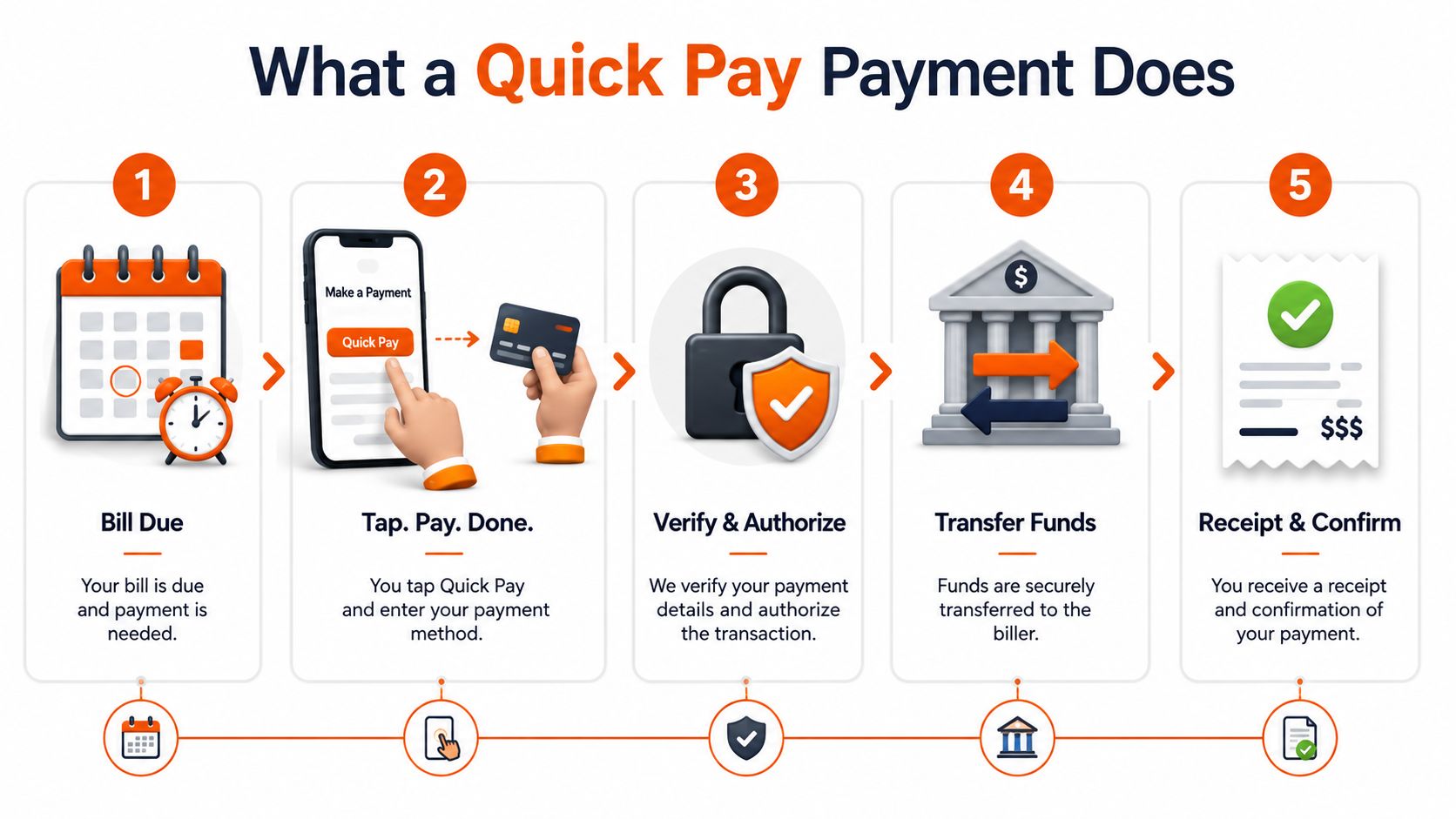
Practical rule: if you only look for the “sent” screen, you can miss the part that matters most, the actual confirmation.
In practice, that means one payment can look successful on your phone while the biller is still waiting for acceptance or receipt. The clean habit is to treat the button tap as the start of the process, not the finish. If you want the simplest way to think about it, the payment is only fully done when the confirmation is visible and the debit or bill status matches it.
For a clearer distinction between who sends money and who receives it, see Fintrack's guide to payor versus payee.
Before You Hit Send, Gather These Details
Most quick pay failures start with a small omission, not a broken platform. The good news is that the fix is usually simple, if you gather the right details before you open the payment screen. A calm minute of prep saves a lot of back-and-forth later.
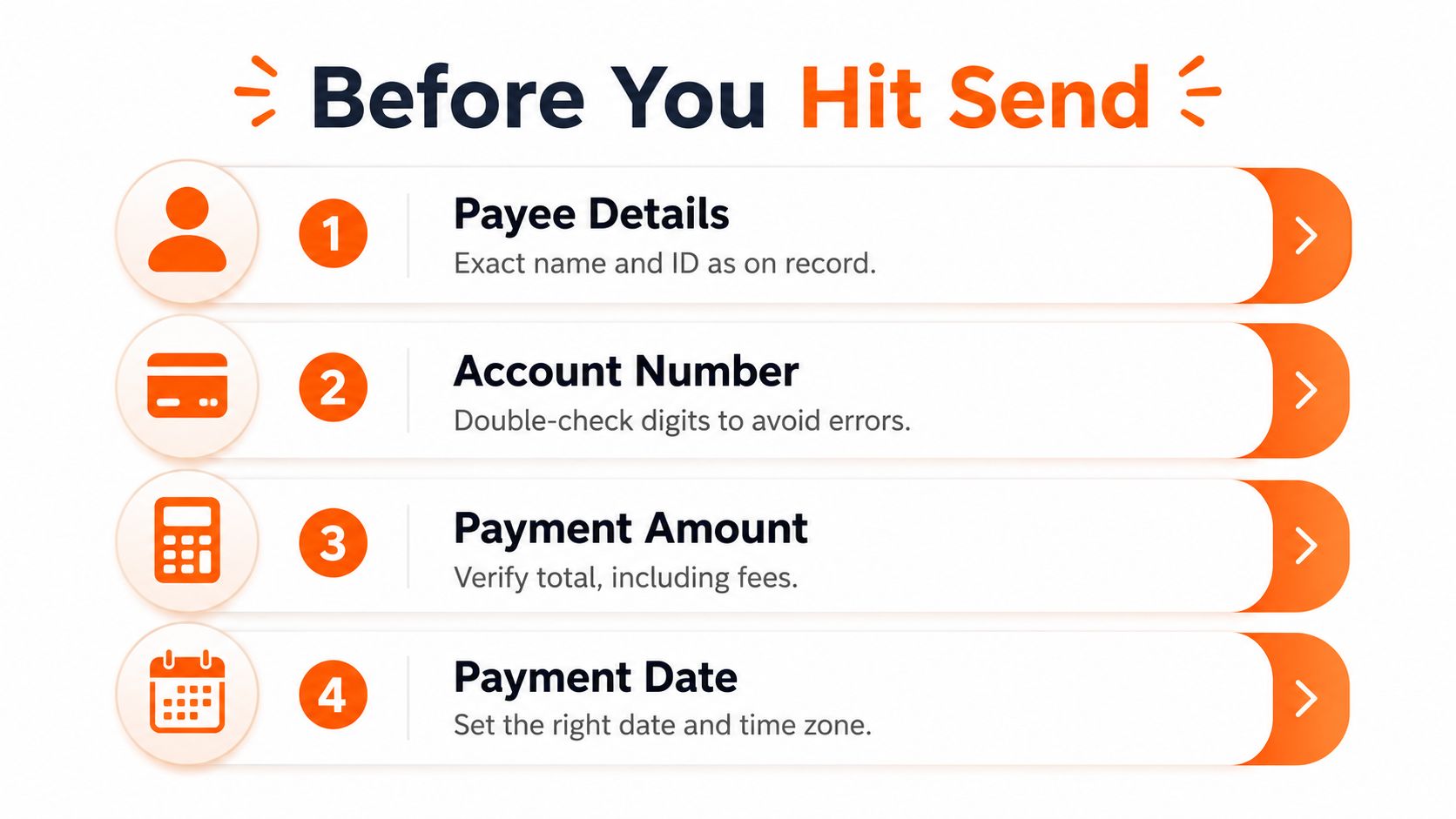
The details worth having open
Keep these items in front of you before you start:
- Exact payee information. Use the name and identifier the biller expects, not a nickname you happen to recognise.
- Funding source. Know which account, card, or wallet will be charged.
- Amount and fees. Some platforms add charges depending on how you fund the payment.
- Pay date. Decide whether you want the payment sent today or on a future date.
That last point matters more than people expect. Some bill-payment systems let you submit only after entering a biller, amount, and date, and the payment can go immediately or later depending on the platform's rules. Quicken's Quick Pay, for example, defaults the pay date to today, sends immediate payments usually within a few minutes, and lets users schedule most bills up to 45 days ahead (Quicken Quick Pay).
If the platform asks for extra verification, stop and complete it instead of retrying blindly.
That security step can be very specific. Bank of Cyprus' QuickPay allows payments up to €250 per day without a digipass, while amounts over €250 require a digipass, and credit-card-funded QuickPay payments carry a 3.33% fee with a minimum charge of €5 (Bank of Cyprus QuickPay FAQs). If you know that rule before you begin, you won't mistake a limit prompt for a system error.
If your payment is linked to a card bill, Fintrack's guide to credit card payment tracking is a useful companion read.
Setting Up Your First Quick Pay Payment Step by Step
Start with the simplest possible example. Say you need to pay a $132 utility bill the evening before it's due, and you want to avoid a late fee. Open the quick pay screen, select the biller, type the amount exactly as shown on the bill, choose the pay date, and pick the funding source.
A clean first-run workflow
- Add or select the biller. Use the exact biller record if it already exists. If you're adding a new one, be careful with any account or reference number the platform asks for.
- Enter the amount. Match the bill unless you intentionally want to pay something different, such as a partial payment.
- Choose the pay date. If the app defaults to today, decide whether that works for your cash flow.
- Pick the funding source. Check that the source has enough available funds and that you're comfortable with any fee that may apply.
- Review and confirm. Read the final screen slowly, then submit once you're sure the details match.
That workflow sounds basic, but the small mistakes usually happen in the review step. People glance at the amount, miss the pay date, or assume the first biller suggestion is the right one. If the payment is for rent, it's worth reading a focused guide on secure online rent payment methods so you can compare the biller, timing, and confirmation language against a familiar example.
After you confirm, look for the transaction status inside the app or portal. That status is your bridge to reconciliation, because the payment may appear as pending first and debit your account slightly later. For readers who manage several accounts, Fintrack's bank account aggregation guide is helpful for understanding how different sources can be viewed together.
Immediate Versus Scheduled Quick Pay Payments
A same-day payment and a future-dated payment can look similar on the screen, but they behave differently after you hit confirm. The easiest way to see the difference is with two short examples.
Two real-world timing patterns
Maya owes a utility bill today and pays from her phone at lunch. Her platform defaults the pay date to today, and the payment is marked for immediate processing. In many systems, that means the money moves quickly, often within minutes, but the biller still needs to receive and register it.
Jared pays the same kind of bill twelve days early because his payday lands later. He schedules it in advance, checks the date twice, and leaves the money in his account until the platform sends it on the chosen day. That keeps him organised, but it also means he must remember that a scheduled payment isn't the same as an instant one.
The simple distinction is this, immediate means you want action now, while scheduled means you're reserving a future action. If you mix those up, you might think a payment has already cleared when it hasn't yet, or you might schedule a payment so late that the biller receives it after the date you expected.
The safest habit is to check the pay date before you check the confirmation screen.
That habit matters because the practical consequence isn't only timing, it's also control. A scheduled payment can usually be reviewed before it leaves, while an immediate one narrows your window for changes. If you're comparing broader payment tools, Fintrack's overview of the best money transferring apps is a useful way to see how different timing rules show up in real use.
Fees, Limits, and Security Trade-offs to Know
The cheapest quick pay route is usually the one that uses the least friction, but not every platform charges the same way. Fees and limits are often tied to the funding source and to the platform's own risk controls, so it pays to slow down before you send money in a hurry.
Funding source trade-offs for quick pay payments
| Funding Source | Typical Fee | Speed | Security Step |
|---|---|---|---|
| Bank account | Usually the lowest-cost option, depending on the platform | Often immediate or same-day | May still require normal login or verification |
| Debit card | Can be fast, with platform-specific fees possible | Usually quick | May trigger card verification |
| Credit card | Can carry an added fee, such as the 3.33% charge noted in Bank of Cyprus QuickPay (Bank of Cyprus QuickPay FAQs) | Fast, but the cost can be higher | Extra identity or payment checks are common |
The main security trade-off is that some platforms add a stronger verification step once you cross a threshold. That's not a failure, it's a control. Bank of Cyprus' rule, where payments over €250 require a digipass, is a good example of how speed and extra security can coexist on the same platform (Bank of Cyprus QuickPay FAQs).
For families who want a broader view of account movement and payment timing, Fintrack's article on identity theft help for Australian families is worth a look alongside your usual payment checks, especially when you're reviewing unfamiliar debits or repeated payment attempts.
A quick way to choose is simple. Use the least expensive funding route when the bill isn't urgent, use the fastest route only when timing matters, and plan ahead if your payment is likely to hit a limit. That keeps you from paying for speed you didn't need.
Tracking and Reconciling Quick Pay Payments in Fintrack
A payment isn't finished when the receipt appears. It's finished when you can match the sent amount, the debit date, and the payee in your spending record, and that's where fast payments are easiest to lose track of.
A simple reconciliation habit
After a quick pay payment, log it as a manual transaction if it doesn't already appear in your feed. Add the payee name, the category, and the note that separates the pay date from the actual debit date. That tiny difference matters when a payment is initiated one day and posted the next.
If you're paying a recurring bill like a subscription renewal, categorise it the same way every time. That keeps the expense visible month over month instead of scattering it across generic spending labels. It also makes duplicate charges easier to spot, because a second debit with the same payee stands out faster when the first one is already tagged correctly.
Practical rule: if the app says “sent” but your bank feed hasn't changed, keep checking until the debit appears or the payment status updates.
Fintrack is built for this kind of follow-through, especially when you're comparing a quick payment against your regular transactions and want one place to see both. If the payment later shows twice or posts with a different reference, you can compare the note, category, and date to the bank record instead of guessing.
A good habit is to check quick pay entries the same day you send them. That's usually enough to catch a duplicate, a wrong category, or a payment that still needs a manual note before you forget the context.
Fixing the Most Common Quick Pay Errors
When a quick pay payment fails, the cause is usually visible if you know where to look. You don't need a long support call, you need a short checklist and a way to sort the problem into the right bucket.
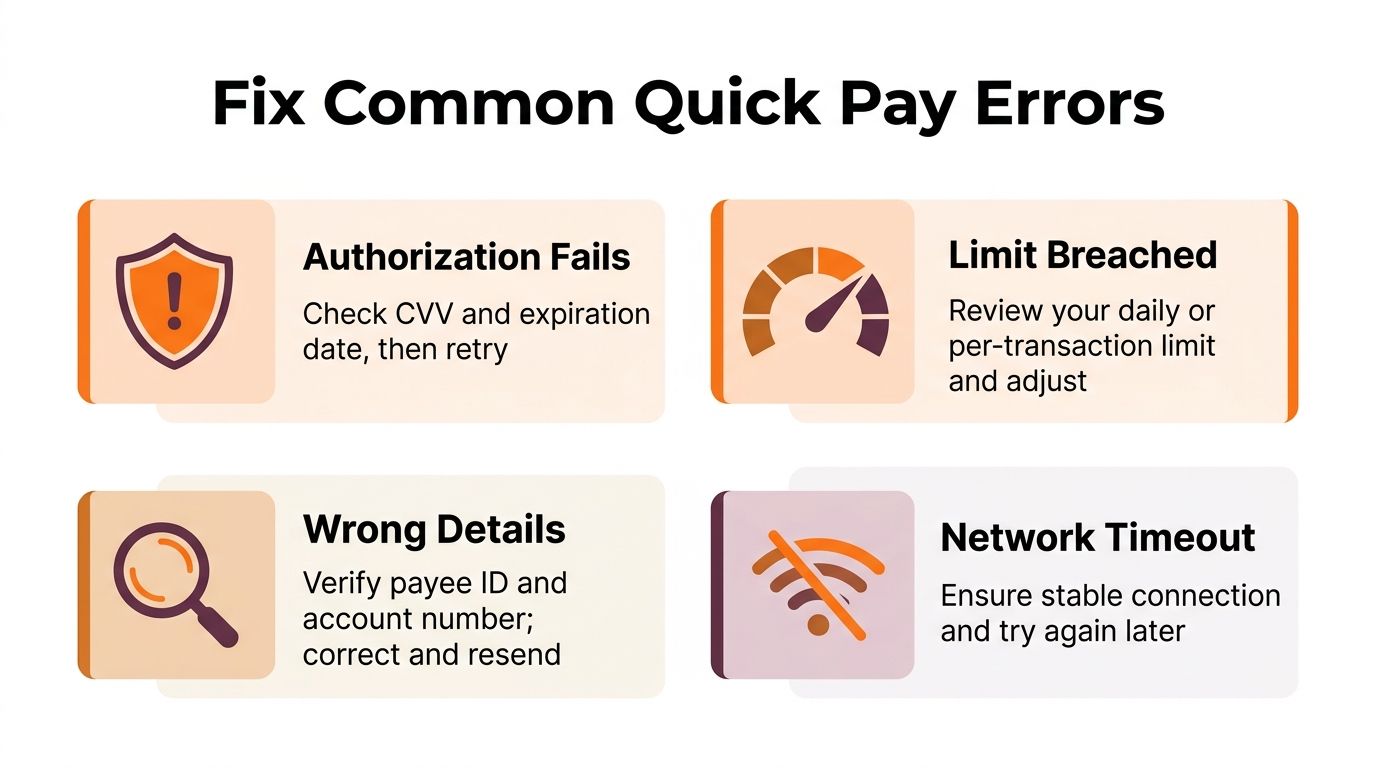
Four common failure patterns
- Authorization fails. The form or hosted window rejects the payment because a field is missing or inconsistent. Recheck every required detail, including any checksum-sensitive field order in hosted payment flows like Quickpay Form, where all request fields must be included, sorted alphabetically, concatenated with single spaces, and authenticated with HMAC-SHA256 (Quickpay Form checksum guidance).
- The limit is breached. The platform blocks the payment because you've hit a daily or transaction ceiling. Lower the amount, split the payment if the service allows it, or schedule earlier.
- The payee details don't match. A biller name, ID, or account number doesn't line up with the record on file. Compare the payment screen against the bill or account statement character by character.
- The network stalls. A slow connection can interrupt the submission even when your details are right. Retry from a stable connection after confirming the payment didn't already go through.
If you're worried a cancelled or failed attempt might still be pending, Fintrack's guide on how to cancel a payment in PayPal gives a useful mindset for checking status before retrying, even if your own platform works differently.
Before you contact support, run this order: confirm the payee, confirm the amount, confirm the pay date, confirm the limit, and then check the status against your bank feed. That sequence solves more problems than trying the same button again and again.
If you want a calmer way to keep quick payments organised, Fintrack lets you record the transaction, tag the payee, and compare the debit against your bank activity in one place. That makes it easier to spot duplicates, track timing, and keep every fast payment tied to a clear record.