You downloaded a spreadsheet in the first week of January, convinced you'd found the best personal budget template. You filled it in daily for nine days, then a shifted bill landed in the wrong row and pushed every subtotal out of alignment.
By the time you reopened it, your grocery spending was out of date, a credit card payment looked like another expense, and fixing the sheet felt harder than starting again. The problem wasn't necessarily your discipline. You needed a system that could survive a messy month, not just a tidy one.
That's the test behind these picks. A useful budget should let you correct a transaction, handle an annual bill, and keep going after you miss an update.
- Setup effort. How much category editing and spreadsheet knowledge do you need before entering real spending?
- Weekly upkeep. Are you recording transactions once, or rebuilding totals every weekend?
- Bank-free use. Can a Canadian household maintain the budget without relying on a bank connection?
- Moving later. Can you lift out transaction-level records, or only a summary of monthly totals?
The options range from guided Canadian government planners to spreadsheet systems and an app with manual entry. US readers can also use the general-purpose spreadsheets, although Canadian comparison figures won't be personal spending targets.
Start with the constraint that's bothering you now. You don't need envelope budgeting if you only want to check whether your pay covers your bills.
1. Fintrack
Best for people who want manual entry without maintaining spreadsheet formulas. Fintrack brings income, expenses, budgets, and savings goals into one dashboard, rather than asking you to connect separate worksheets.
Our Free plan includes manual expense tracking, CSV imports, and basic AI chat, with no credit card required. That gives Canadian users a practical route when they don't want a bank connection or can't rely on one.
When the best personal budget template isn't a spreadsheet
Start by entering your spending categories and limits. You can link budgets to savings goals, while colour-coded budget bars show how spending compares with each limit.
The ongoing advantage is avoiding formula upkeep. A transaction entered under the wrong category still needs correcting, but you aren't also checking whether someone overwrote a subtotal cell.
- Less manual analysis. Finny, our AI personal finance assistant, answers questions using your financial data and can compare spending across months.
- Earlier prompts. Velocity alerts warn when your spending pace suggests you'll exceed a budget before month-end.
- Shared planning. Household Plans let family members work with the same accounts, transactions, budgets, and goals.
The trade-off is control. A spreadsheet lets you invent a custom calculation or rearrange the entire layout; an app gives you a defined workflow instead.
CSV imports also need clean inputs. Check dates, category names, and duplicate transactions rather than assuming an imported file is immediately ready to trust.
The Benefits Wallet adds a separate place to track rewards, memberships, and unused benefits, but that's secondary to this decision. Choose this option if keeping the budget current matters more than designing the workbook. Before committing your full history to any app, confirm how you'll retrieve the records you may need later.
2. Financial Consumer Agency of Canada (FCAC) Budget Planner
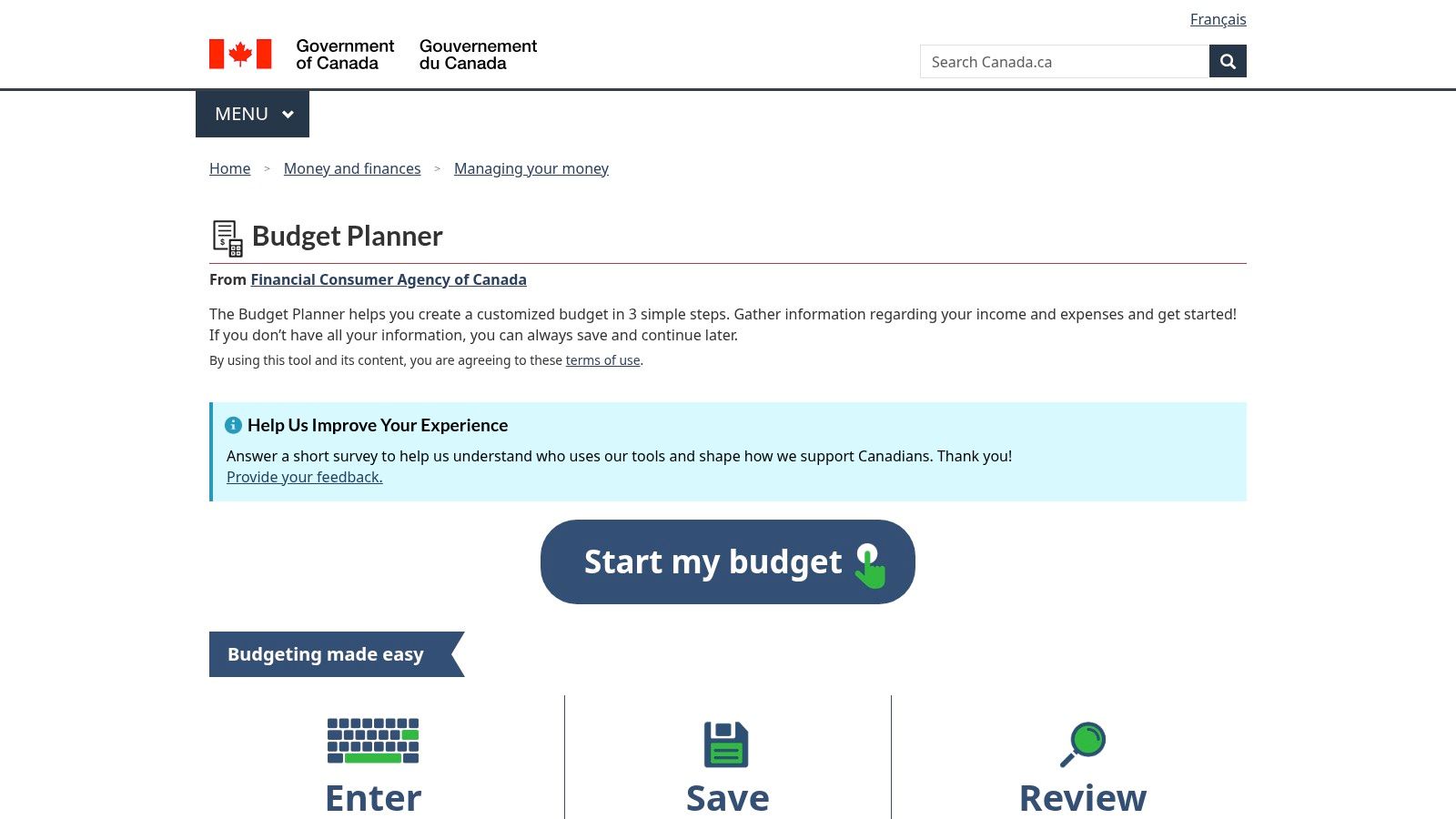
A blank workbook isn't helpful when you're unsure what belongs in it. The free FCAC Budget Planner guides Canadian users through income, expenses, and savings, then provides a summary and suggestions.
You can save access through a unique link or download a spreadsheet. Setup involves gathering your figures rather than building formulas, although you'll still need to enter those figures manually.
Guidance first, transaction tracking second
This is a strong starting point for understanding whether your plan balances. It isn't an automatic transaction ledger, so decide where you'll record purchases between reviews.
Keep the saved access link somewhere private and retrievable. If you download the spreadsheet, preserve an untouched copy before changing its layout.
Practical rule: A planner tells you what you intend to spend. A transaction log tells you whether you actually did.
Its Canadian spending comparisons can prompt useful questions, but they shouldn't dictate your grocery or housing allowance. Your location, household size, and obligations matter more than matching an average.
For shared expenses, use a family budget planning template to agree on what's included before entering totals. Otherwise, one partner may enter the full utility bill while the other enters their contribution.
Choose it for guided setup. Choose something else if your main frustration is repeatedly collecting transactions.
3. Credit Canada Free Budget Planner
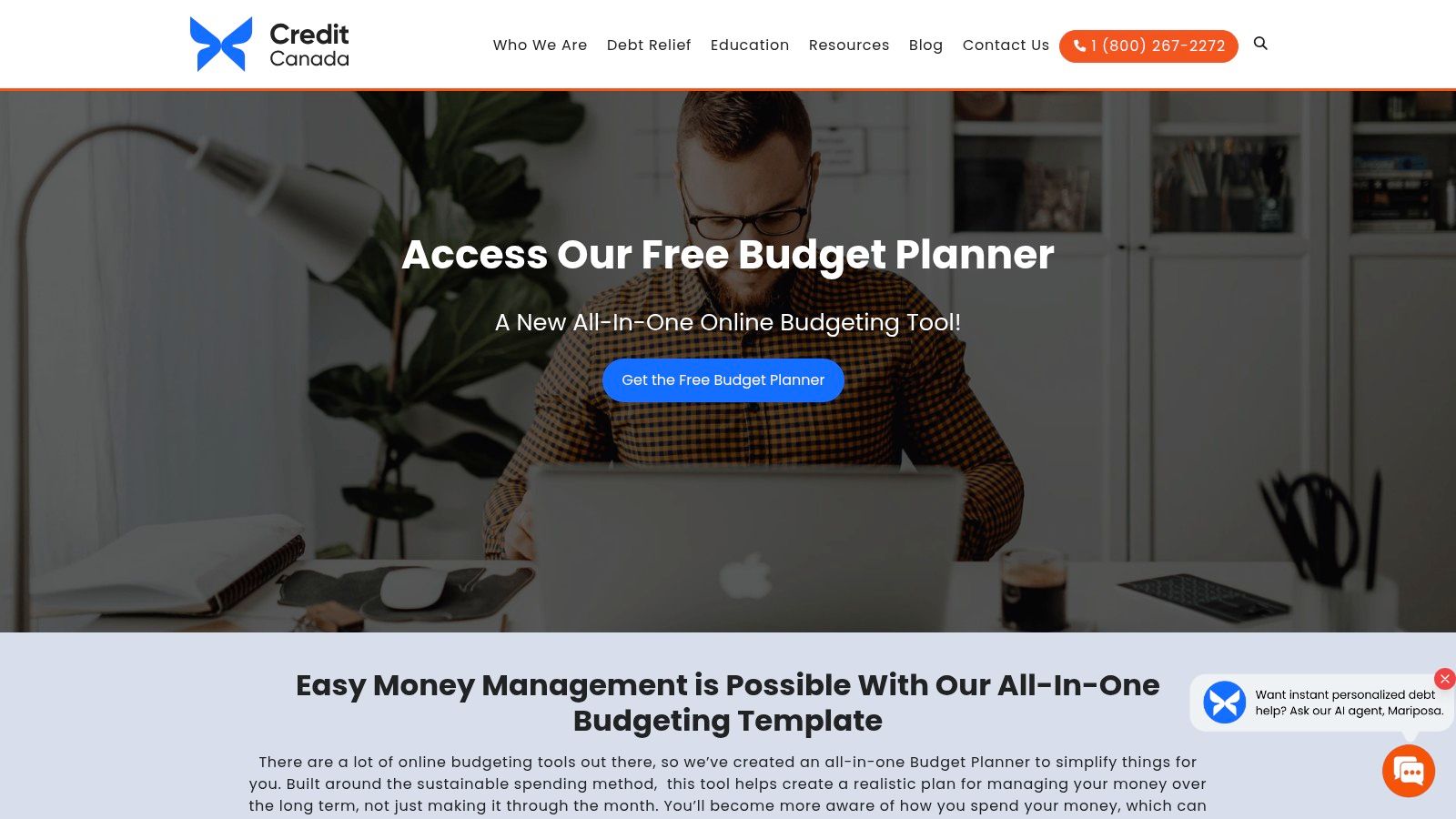
If debt payments are the reason you're budgeting, the Credit Canada Free Budget Planner offers a more relevant starting point than a decorative spending dashboard. The Canadian nonprofit's spreadsheet compares income and expenses and highlights where you're over or under budget.
Access requires submitting contact details, including an email address. That's a small but real difference from opening a public spreadsheet directly.
The useful part is its cash-flow framing. You can see debt payments alongside everyday costs and savings instead of treating debt reduction as whatever remains after everything else.
- Setup. Gather take-home income, recurring bills, debt payments, and recent variable spending before completing it.
- Weekly work. Keep a separate transaction record and use it to update actual spending.
- Main limitation. It doesn't connect to bank accounts, so don't expect purchases to appear automatically.
By the third week, the friction will be collecting accurate totals, not understanding the layout. A simple receipt or transaction routine matters more than adding another category.
Use general spending guidelines as prompts, not pass-or-fail grades. A household facing high rent may need a different adjustment than a household with expensive discretionary purchases.
This guide to a personal monthly budget can help turn the initial worksheet into a repeatable routine. Keep your underlying transaction records if you might migrate later, because monthly category totals won't preserve purchase-level detail.
4. Office of the Superintendent of Bankruptcy (OSB) Budgeting Template
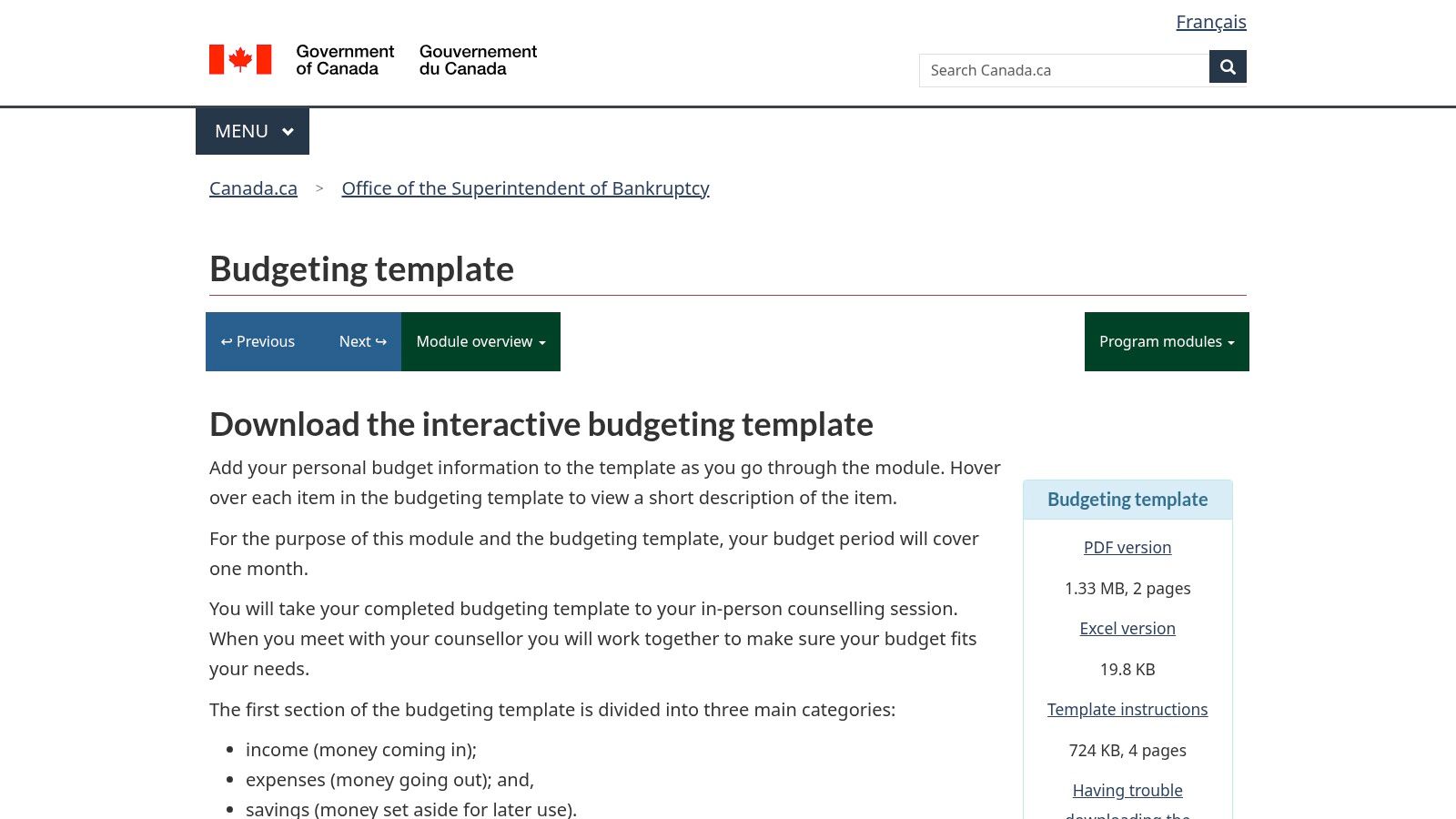
Sometimes you need a clear financial snapshot for a difficult conversation, not a permanent budgeting system. The free OSB Budgeting Template suits that job.
It's part of the Canadian insolvency counselling program, but its income, expense, and savings structure can also work as a standalone worksheet. You can complete it electronically or print it, and the electronic version calculates a budget-balance summary.
Best for making commitments visible
Include less-frequent costs rather than listing only the bills currently in your inbox. Insurance renewals, school expenses, and seasonal costs still need space in the plan.
For an annual bill, divide the expected cost across the months available before it's due. Keep that planned contribution separate from ordinary spending so you don't mistake reserved money for spare cash.
The limitation becomes clear when you want to follow changes across several months. This is a basic monthly view, not a detailed transaction system with automatic syncing.
Bring the worksheet and the records behind it to a counselling discussion. A balanced summary is less useful if you can't explain where the figures came from.
Bank-free use is straightforward because manual input is the intended workflow. Migration is less convenient: retain a separate transaction file rather than expecting a printed or completed summary to become an import-ready ledger.
Choose it for clarity and preparation, especially when you need to explain your commitments without navigating a complicated workbook.
5. Vertex42 Personal Budget Spreadsheet
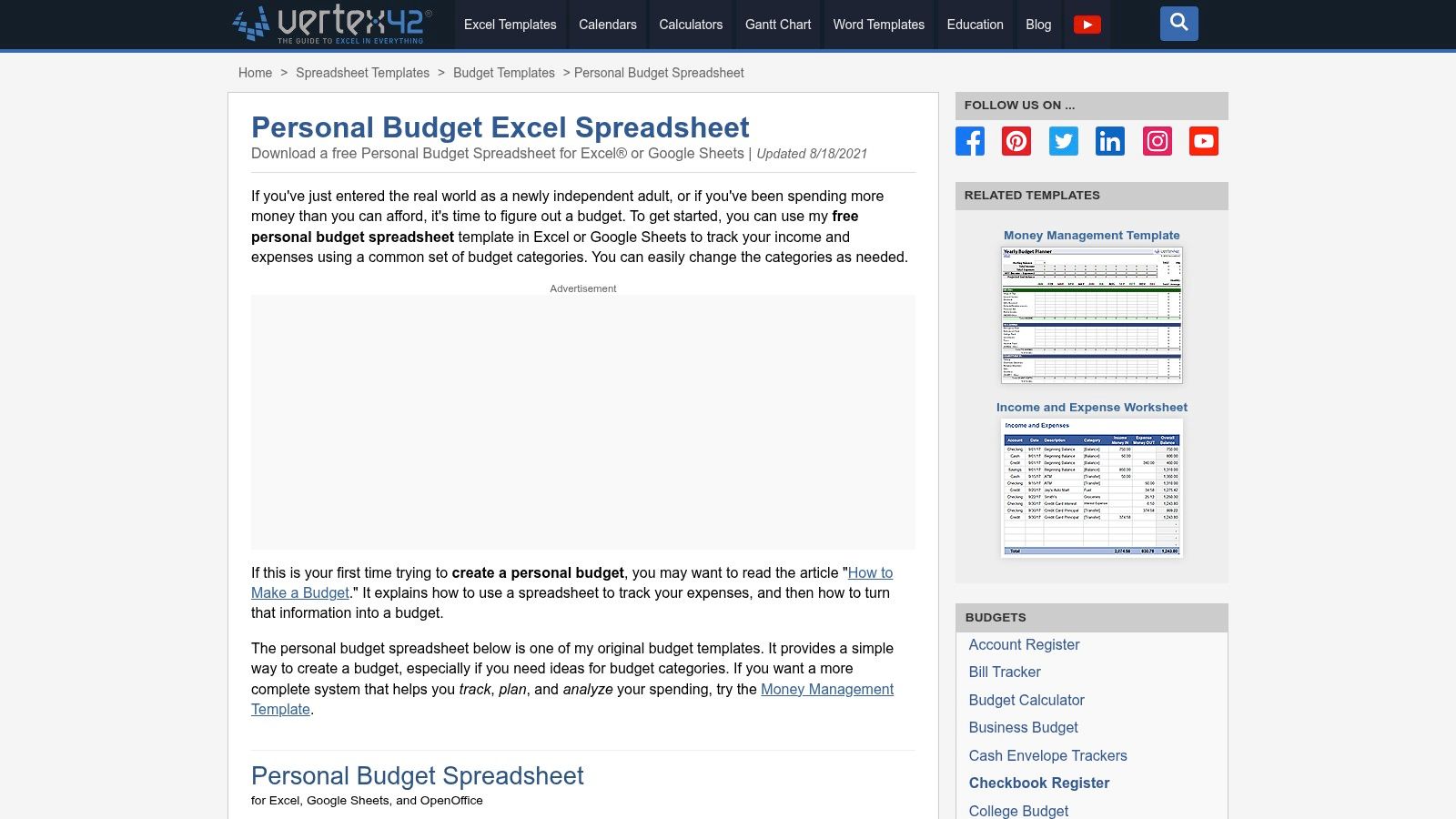
An annual insurance renewal can make an otherwise sensible monthly budget look broken. The Vertex42 Personal Budget Spreadsheet gives you a yearly view, making it easier to plan for uneven expenses.
It's free for personal use, with options for Excel, Google Sheets, and OpenOffice. Income, expense, and savings categories are editable, so you can adapt the sheet without designing a budget from scratch.
The setup burden is moderate because you're planning beyond the current month. Enter known renewals and seasonal costs first, then add ordinary recurring expenses.
Protect the calculations before customising
The annoying part isn't entering a grocery total. It's remembering which cells accept values and which contain formulas after you've changed the layout.
- Keep a clean master. Make category changes in a working copy.
- Check inserted rows. Confirm that subtotal ranges include the new expense.
- Separate records from summaries. Maintain a transaction tab if you want a useful CSV later.
This works for a Canadian household without bank feeds because there's no connection to maintain. The same manual workflow also means you must supply every update.
The yearly view is valuable for planning, but it doesn't remove weekly reconciliation. Compare entered totals with account records before deciding money is available.
I'd choose Vertex42 for someone comfortable with spreadsheets who wants to see seasonal pressure in advance. I wouldn't choose it for someone already avoiding their budget because editing cells feels like homework.
6. Microsoft Excel Personal Budget Templates
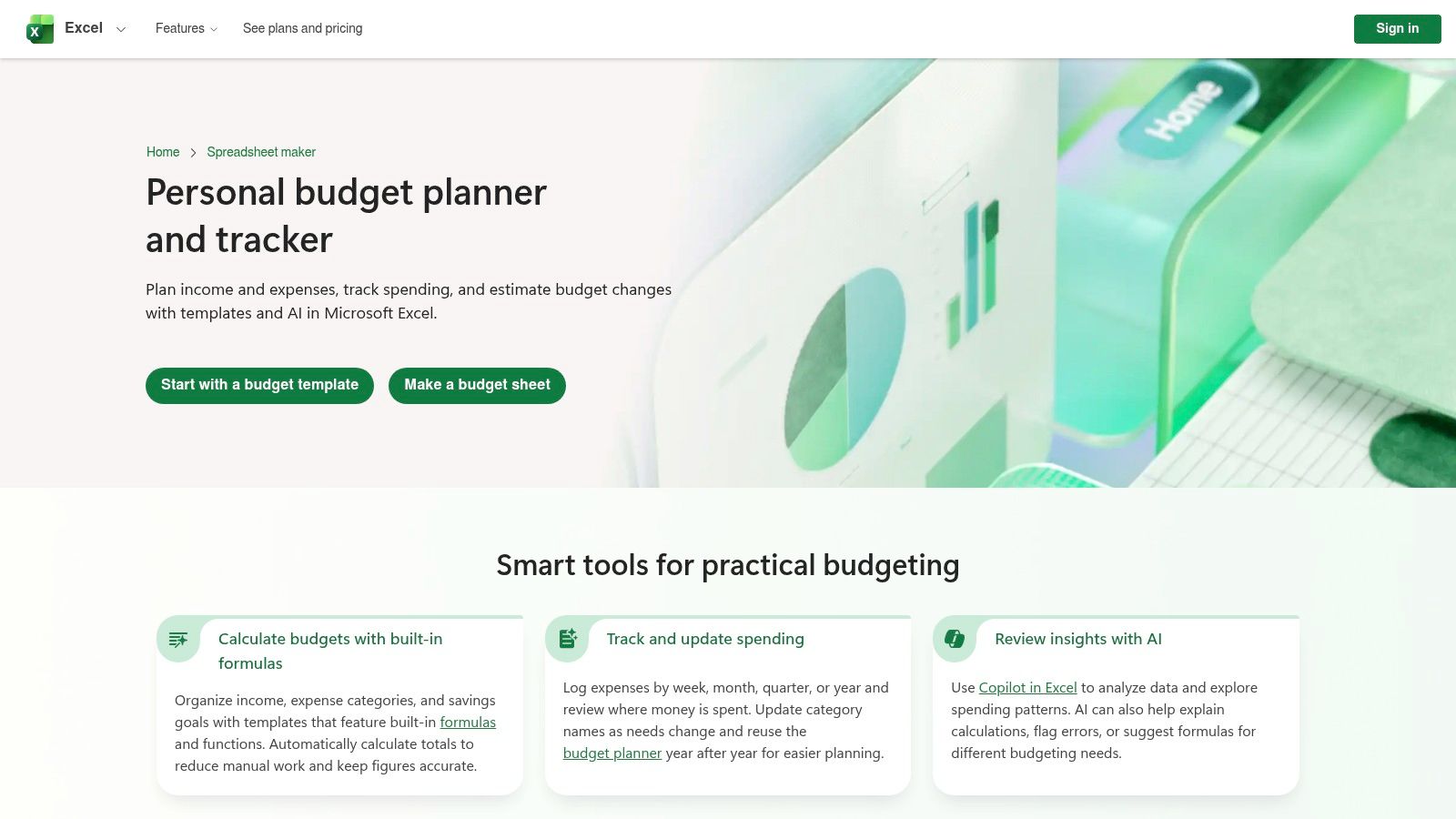
Already comfortable in Excel? Start with Microsoft's personal budget templates rather than learning another spreadsheet platform solely to track spending.
The collection includes monthly budgets, cash-flow layouts, and money trackers. Formulas and charts vary by template, so inspect the actual workbook instead of assuming every option offers the same features.
A polished dashboard can hide an awkward entry process. Before customising colours or adding savings categories, enter a paycheque, a purchase, and a refund to see how the template handles them.
- For solo use. Choose a layout with obvious input cells and planned-versus-actual comparisons.
- For household use. Share through OneDrive and agree on who updates which records.
- For future migration. Prefer a transaction tab with consistent columns over scattered totals.
Manual entry remains your responsibility. Some advanced spreadsheet or AI features may require eligible Microsoft plans, so choose based on the ordinary worksheet workflow rather than extras.
The third-week risk is accidental editing: sorting only part of a transaction range, pasting over formulas, or duplicating a shared expense. Protect calculation cells where practical and keep version history available.
Use this monthly budget template guide to settle the budget structure before comparing visual layouts. Excel is a good fit when familiarity reduces work, not when you're choosing it because the preview looks impressive.
7. Google Sheets Monthly Budget Template
For a household where both people already use Google Drive, the monthly budget in the Google Sheets template gallery is a practical shared starting point. Its transaction-entry and summary sheets keep individual purchases separate from the overview.
That separation matters. You can correct a purchase in the ledger instead of manually changing a category total and losing the explanation behind it.
Setup is relatively light if the default structure fits your needs. Rename categories carefully and enter opening information before inviting someone else to edit.
Agree on entry rules before sharing
Sharing access doesn't prevent duplicate work. Decide whether each person records their own purchases or one person imports and reconciles everything.
Household rule: Record the purchase once. Moving money between partners to settle it isn't another grocery expense.
The sheet doesn't require a Canadian bank feed, but you'll enter or import transactions yourself. After importing, check that dates and amounts are recognised correctly and that category labels match the summary's expectations.
Formula maintenance is the trade-off. Changing a category in the entry sheet without updating the relevant summary logic can leave spending missing or misclassified.
A personal budget template for Google Sheets is useful if you need help establishing that workflow. For migration, export the transaction sheet rather than the dashboard, then check that the file contains records rather than calculated summaries.
Choose this for simple collaboration, not because sharing automatically makes reconciliation effortless.
8. Aspire Budgeting
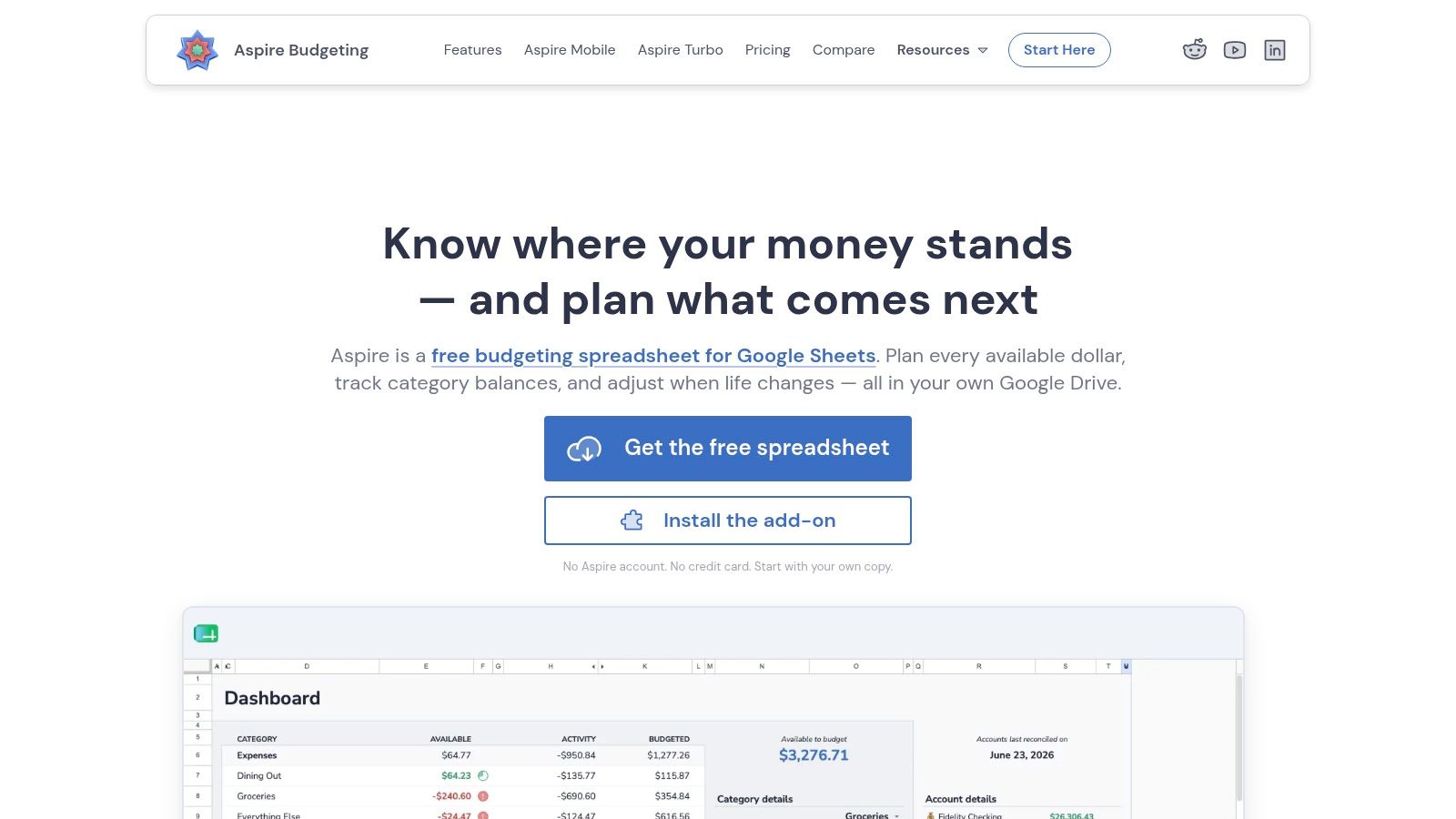
Aspire Budgeting asks a different question from a basic monthly worksheet: how much of the money you currently have is available in each category? Its free Google Sheets system uses zero-based, envelope-style budgeting.
You assign available money, record transactions, and review category balances. The core sheet supports configurable currency, lives in your Google Drive, and doesn't require an Aspire account.
This demands more setup than typing expected bills into a monthly planner. You need to understand the allocation workflow before trusting category balances.
More control means more regular attention
Aspire suits someone who wants to move money deliberately between categories after overspending. It's less suitable if you only want an occasional income-minus-expenses snapshot.
- Bank-free fit. The core manual workflow doesn't depend on a connection.
- Ongoing effort. Transactions and category decisions need regular attention.
- Optional automation. Turbo adds paid workflow tools, including CSV import and other automation features.
Don't assume every feature shown across the site belongs to the core spreadsheet. Decide whether you're comfortable with the manual version before evaluating upgrades.
By the third week, the likely annoyance is unfinished entry rather than missing budgeting detail. If transactions lag behind, category balances won't tell you what's genuinely available.
Preserve formula-driven fields and follow the workbook's intended workflow. When moving elsewhere, retain the transaction ledger and category balances separately, because a destination tracker may not reproduce envelope allocations from transaction history alone.
9. MoneySense Monthly Budget Excel Template
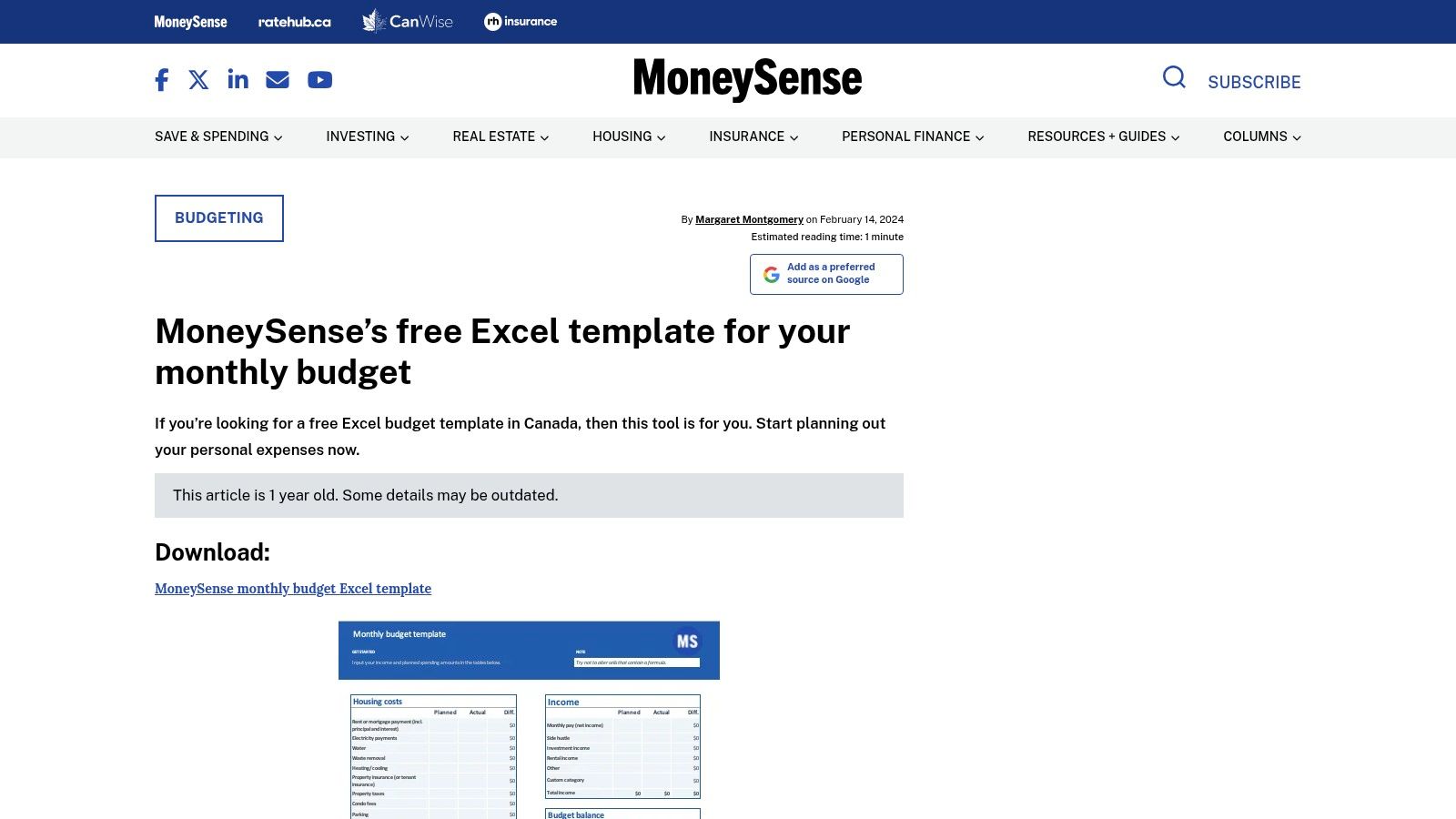
The MoneySense monthly budget template keeps the central comparison straightforward: what did you plan to spend, and what did you spend? The free Excel worksheet calculates the remaining budget balance.
MoneySense directs readers to use net income. That keeps the spending plan tied to take-home money rather than income you won't have available for bills.
This is a sensible Canadian starting point if you want a recognisable monthly worksheet without adopting a full budgeting method. Setup mainly involves entering realistic figures and adapting expense rows.
The row-editing warning matters
MoneySense explains that you can add or remove rows, with care around subtotal rows and formulas. Treat that as an operational warning, not a minor footnote.
After inserting a category, enter a temporary test amount and confirm that the relevant subtotal and overall balance change. Remove the test entry before using the budget.
- What works. Clear planned-versus-actual comparisons make overspending visible.
- What gets tedious. You still need to collect transactions and update actual figures manually.
- What won't happen automatically. Purchases won't sync or categorise themselves.
Its bank-free suitability is strong because manual entry is the whole process. Its migration usefulness depends on your records: category totals alone can't recreate a transaction history.
Choose it if you want a simple monthly check-in and will maintain a separate ledger. Skip it if repeated copying between statements and summary cells is already why you abandon budgets.
10. Tiller Personal Finance Spreadsheet Templates
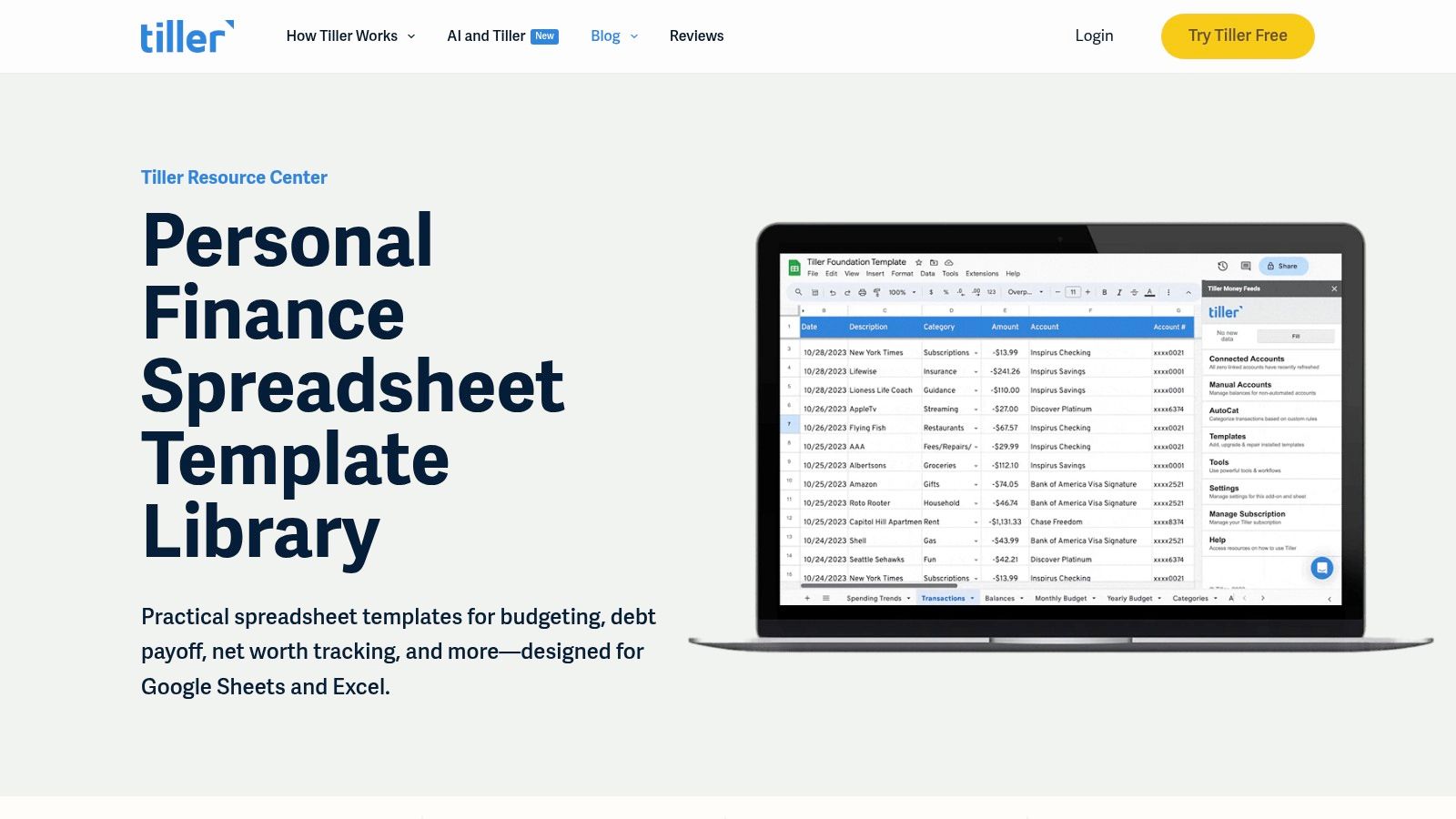
Tiller's personal finance spreadsheet templates bridge spreadsheet ownership and optional automation. Its templates cover budgeting, expenses, debt payoff, and net worth in Google Sheets and Excel.
Templates can be used manually without a subscription. A paid subscription enables automated transaction feeds and financial-data updates.
For Canadian readers, bank compatibility is a decision gate. Confirm support for your actual institutions and account types before paying for automation.
Automation doesn't eliminate reconciliation
A feed can reduce typing, but you still need to review categories, transfers, refunds, and missing records. Spreadsheet formulas and customisations also remain your responsibility.
The setup burden depends on how much you combine. A budget plus debt and net-worth tracking requires more configuration than a basic monthly spending sheet.
- Choose manual use if you like the templates and don't need connected accounts.
- Consider paid feeds if support is confirmed and transaction entry is your main bottleneck.
- Keep reviewing if you add custom categories or change reporting formulas.
The third-week test is whether automation removes your recurring work. If you're repeatedly repairing a connection or reclassifying imports, include that effort in your decision.
Transaction-level spreadsheets can make later migration manageable, provided you preserve clean dates, amounts, descriptions, and categories. This comparison of personal budgeting programs can help if you're deciding whether spreadsheet flexibility still justifies the maintenance.
Choose Tiller for the combination, not on the assumption that a subscription makes a spreadsheet maintenance-free.
How the 10 templates compare on format, cost, and daily upkeep
| Template | Format | Cost | Best For | Automation |
|---|---|---|---|---|
| Fintrack (recommended) | Web and mobile finance app | Free-forever option; paid pricing not specified | AI-guided budgeting, savings goals, and rewards discovery | Transaction insights, subscription detection, and real-time alerts |
| Financial Consumer Agency of Canada (FCAC) Budget Planner | Online planner and downloadable spreadsheet | Free | Canadians seeking guided budget planning | Automatically summarizes entered figures; transactions require manual entry |
| Credit Canada Free Budget Planner | Online budget spreadsheet | Free; contact details required for access | Canadians planning cash flow, debt reduction, and savings | No bank connection; transaction automation not specified |
| Office of the Superintendent of Bankruptcy (OSB) Budgeting Template | Interactive monthly template or printable worksheet | Free | Basic budgeting and counselling preparation | Automatically calculates the budget balance; no transaction syncing |
| Vertex42 Personal Budget Spreadsheet | Spreadsheet for Excel, Google Sheets, or OpenOffice | Free for personal use | Yearly budgeting with customizable categories | Manual entry; no bank-feed automation |
| Microsoft Excel Personal Budget Templates | Excel spreadsheets | Cost varies by Excel plan and template | Customizable personal or household budgeting | Formulas and some charts; transactions require manual entry |
| Google Sheets Monthly Budget Template | Cloud-based spreadsheet | Cost not specified | Shareable monthly budgeting for Google Sheets users | Formulas summarize entered or imported transactions; no automatic bank syncing |
| Aspire Budgeting | Google Sheets zero-based budget | Free core sheet; paid Turbo upgrade available | Detailed envelope budgeting and partner sharing | Optional paid tools for CSV imports, categorization, and recurring expenses |
| MoneySense Monthly Budget Excel Template | Monthly Excel spreadsheet | Free | Canadians comparing planned and actual spending | Calculates remaining budget; no transaction syncing |
| Tiller Personal Finance Spreadsheet Templates | Google Sheets and Excel templates | Manual use available free; automation requires a paid subscription | Spreadsheet budgeting with optional financial-data feeds | Paid daily transaction updates, categorization, and reporting |
| Tiller Personal Finance Spreadsheet Templates | Google Sheets and Excel templates | Manual use available free; automation requires a paid subscription | Spreadsheet budgeting with optional financial-data feeds | Paid daily transaction updates, categorization, and reporting |
Pick One, Run It for Four Weeks, Then Decide
Start with the simplest option that matches your actual constraint. Choose a guided government planner if you need help identifying expenses, Aspire if you already think in envelopes, or a shared Google Sheet for a household of two.
Choose Tiller's paid feeds only after confirming Canadian institution support and deciding you're willing to pay for that workflow. If formulas are the problem, don't download a more elaborate workbook and expect less maintenance.
Use a short trial, not another template search
Keep the same system through an ordinary stretch of bills and purchases. These are trial steps, not performance promises.
- Week one. Set up categories, enter take-home income, list recurring commitments, and add savings and irregular expenses.
- For two weeks. Log every transaction, including cash purchases, refunds, and transfers that need separate treatment.
- At day 28. Reconcile against account records and compare planned spending with actual spending.
- Record the friction. Note exactly where you slowed down: mobile entry, category choices, formula repairs, shared updates, or missing imports.
Don't judge the template only by whether you stayed within budget. Judge whether it helped you notice a problem and revise the plan without starting over.
Consistency matters more than a perfect first setup. An FCAC longitudinal study on budgeting associated consistent budgeting with greater savings, stronger ability to keep up with financial commitments, and lower credit-related financial stress.
Move the records, not just the dashboard
If the spreadsheet stops being enough, export the transaction ledger to CSV, not the summary charts. Standardise category names first so groceries, grocery, and food shopping don't become separate buckets unintentionally.
Check the destination's import fields before uploading. Review date formats, debit and credit signs, account names, refunds, transfers, and duplicate transactions.
Import a small sample before the full history. Compare both transaction counts and totals with the original records, then inspect individual entries that could conceal errors, especially credit card payments recorded alongside the purchases they settle.
Keep an untouched backup of the workbook and export. Don't discard the original until you've reconciled the imported period.
For manual entry and CSV imports without formula upkeep, Fintrack's budget planning tools are a natural next step. Reuse the categories that worked during your trial rather than redesigning the whole budget.
Our Free plan includes manual expense tracking, CSV imports, and basic AI chat, so you can keep the useful parts of your spreadsheet without maintaining its formulas. Visit Fintrack to create a free account in under a minute, then rebuild the same budget and start tracking from there.